Display a customer review or testimonial as a slide — author, rating, photo, and review text are all on a single card.
Step 1 — Open My Content and click Custom Reviews
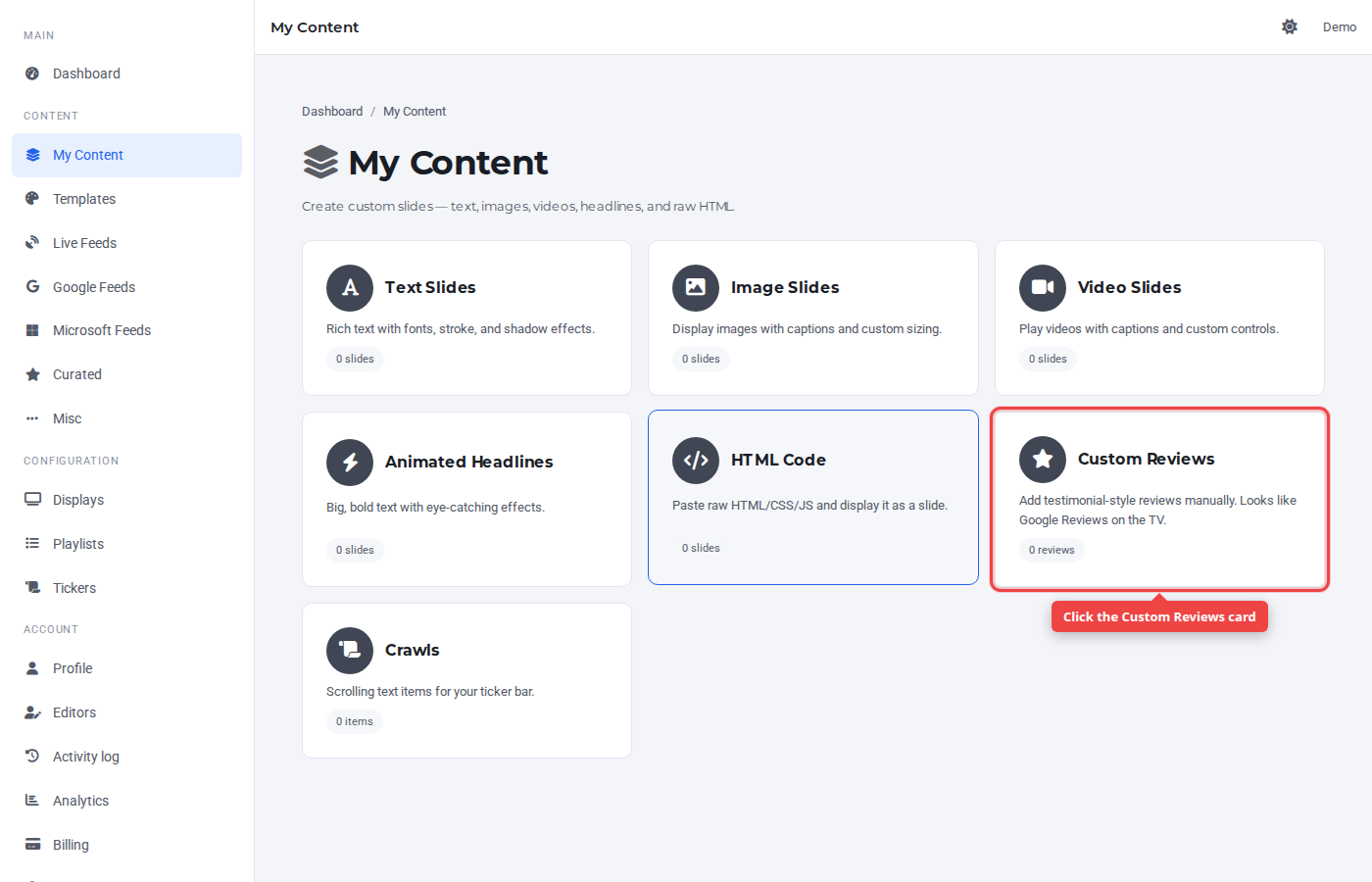
In the sidebar under Content, click My Content, then the Custom Reviews card.
Step 2 — Switch to the Add New tab
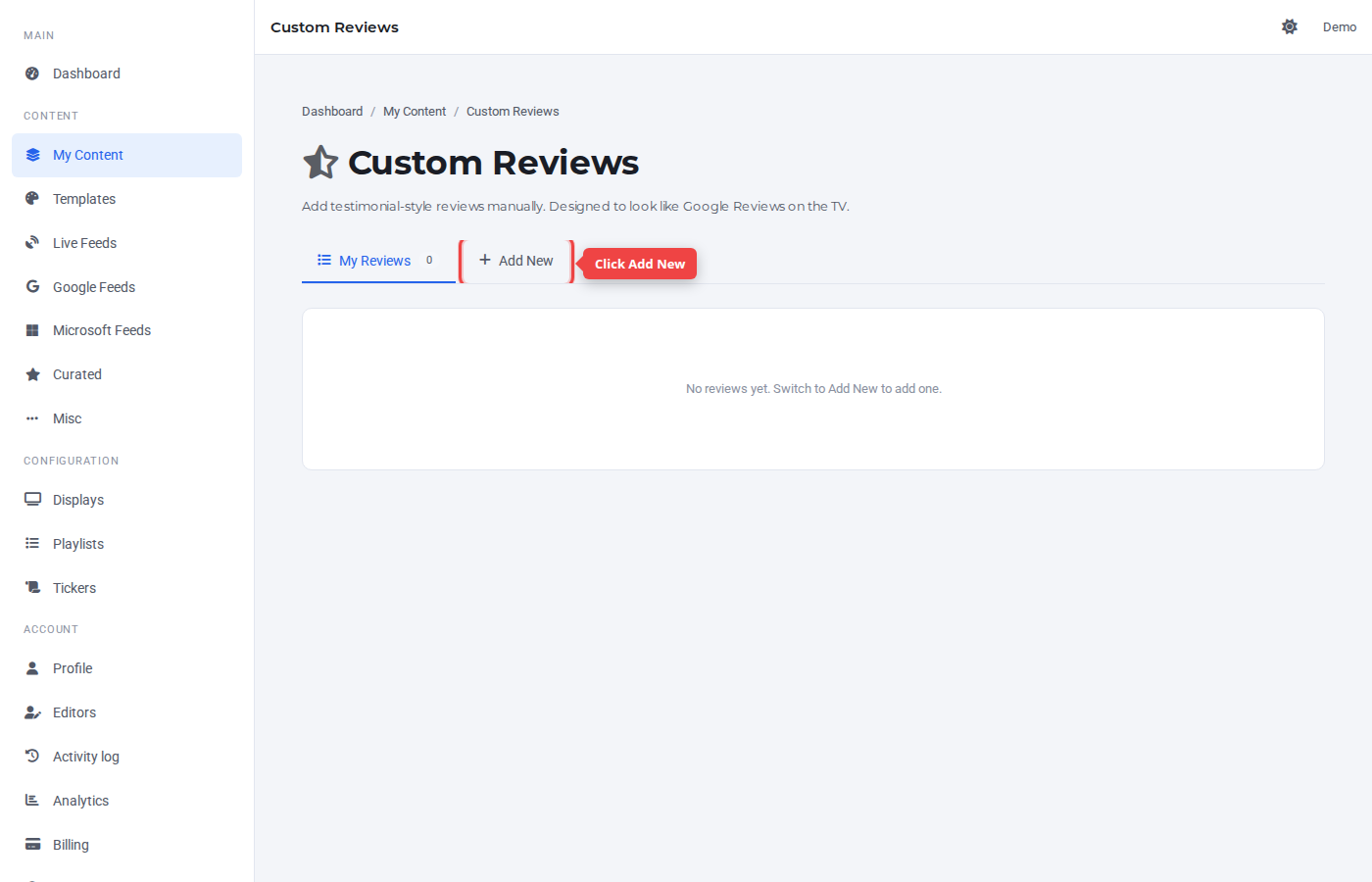
Click the + Add New tab.
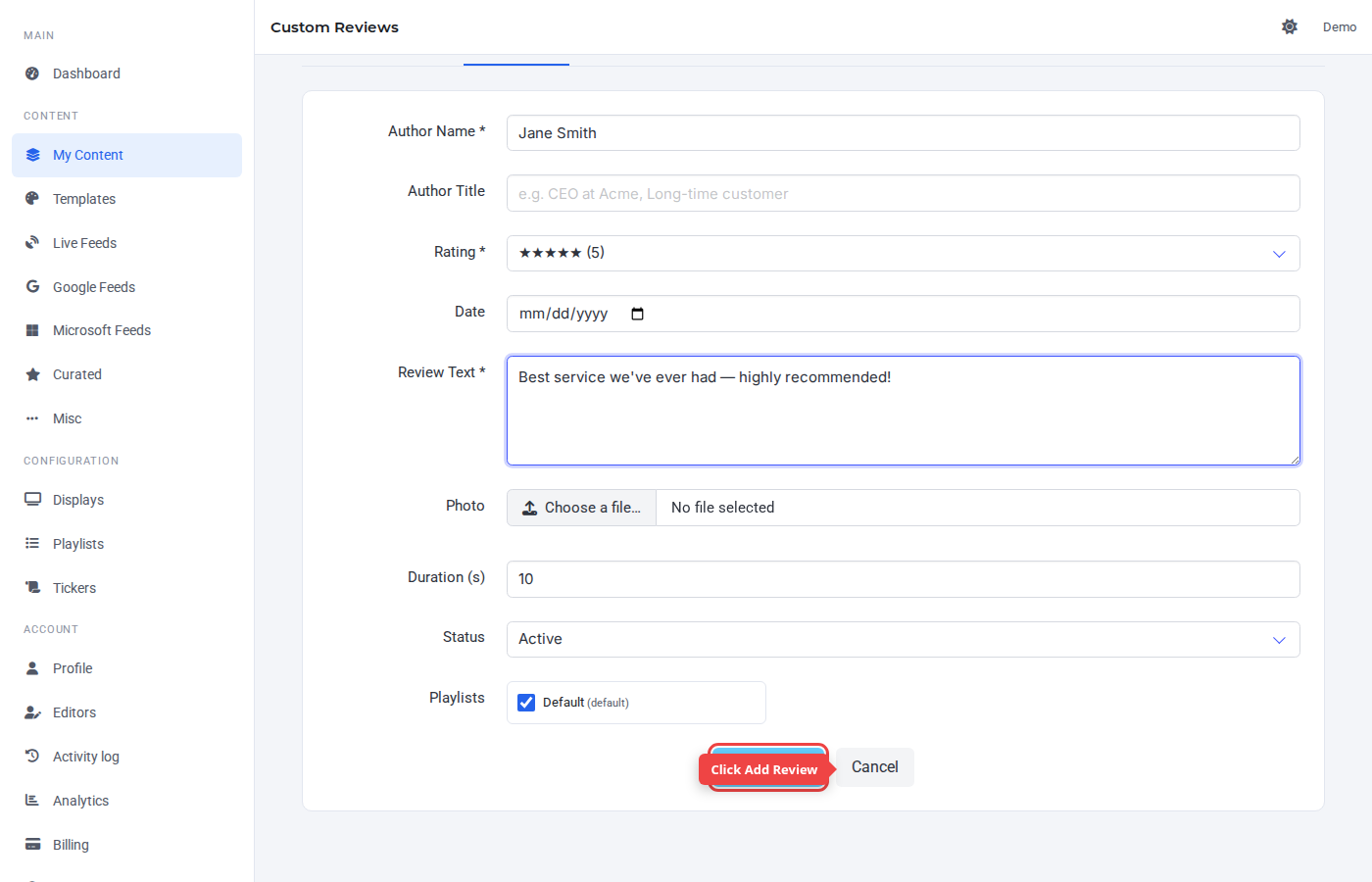
Step 3 — Enter the author's name
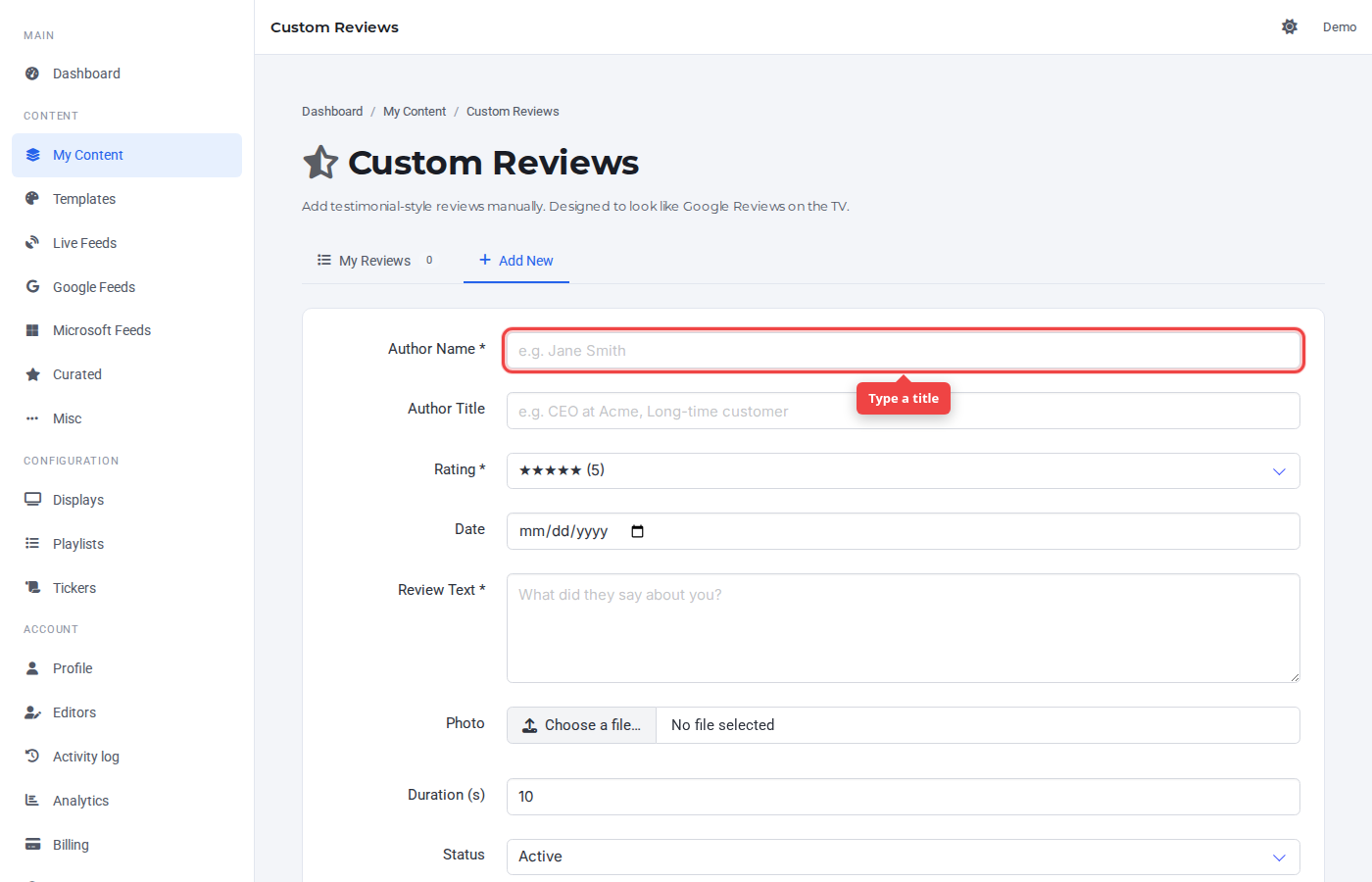
The Author is the name displayed on the slide.
Step 4 — Enter the review text
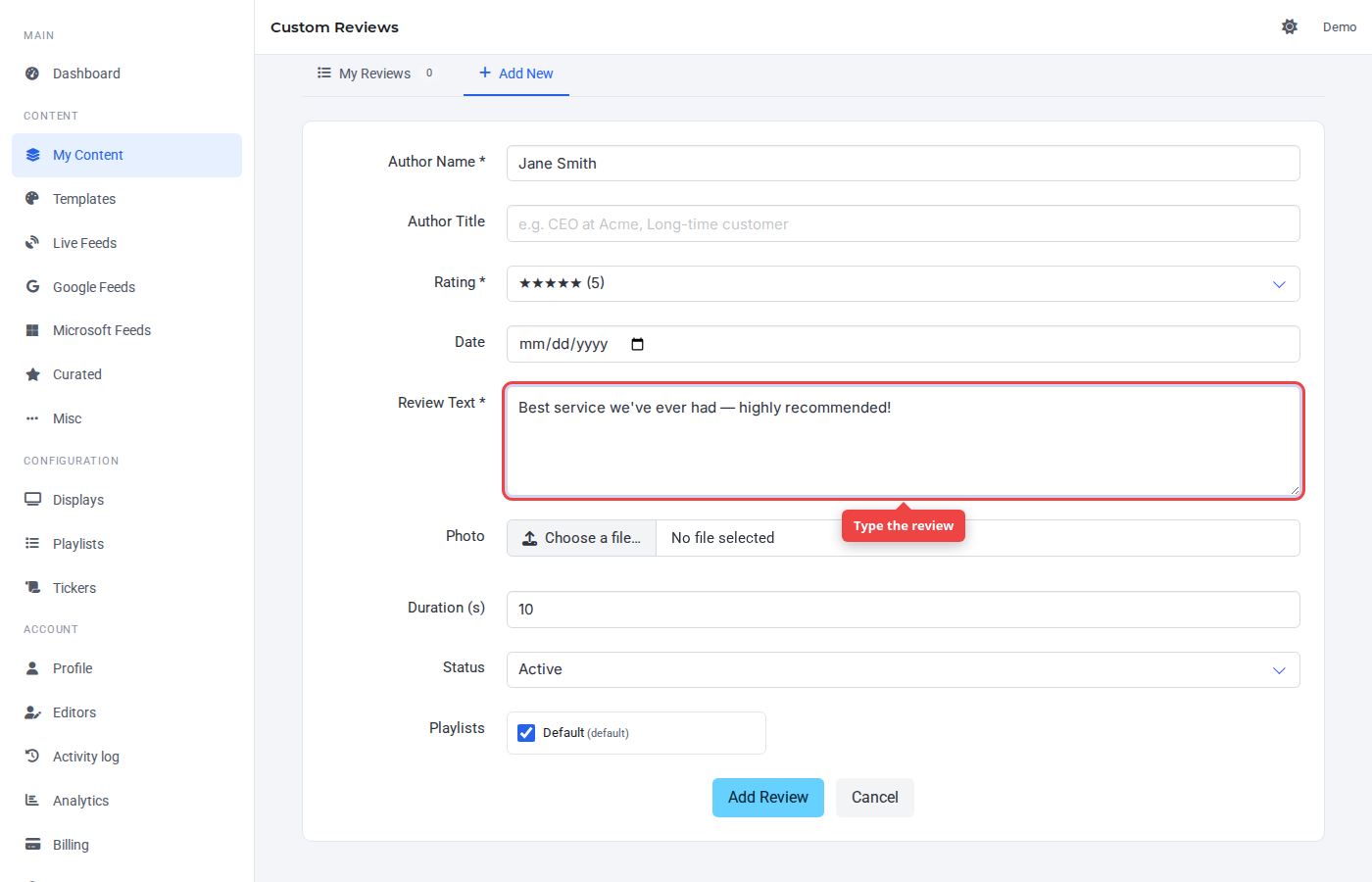
The Review field is the body of the testimonial. Author title, rating, date, and photo are optional.
Step 5 — Submit
Click Add Review. Defaults for rating (5 stars) and duration (10 s) are sensible.
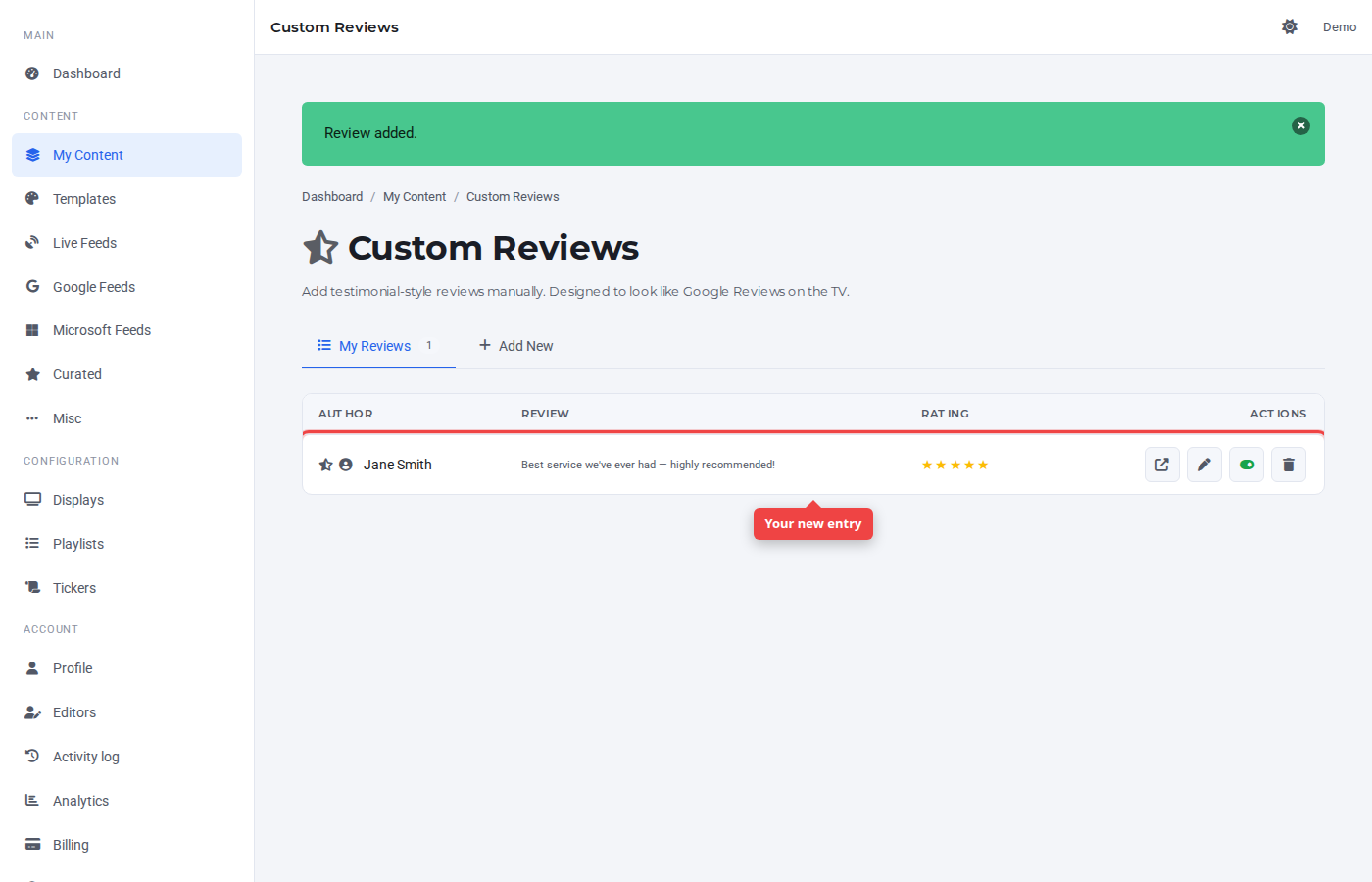
Step 6 — Confirm in the list
The new review appears at the top of the list, assigned to the default playlist.
Was this article helpful? If you need more help, open a support ticket.
Sign in to open a ticket