Create a Now Hiring slide and save it to your library. The slide is added to your default playlist and starts playing on the next playback cycle.
Step 1 — Open Templates → Now Hiring
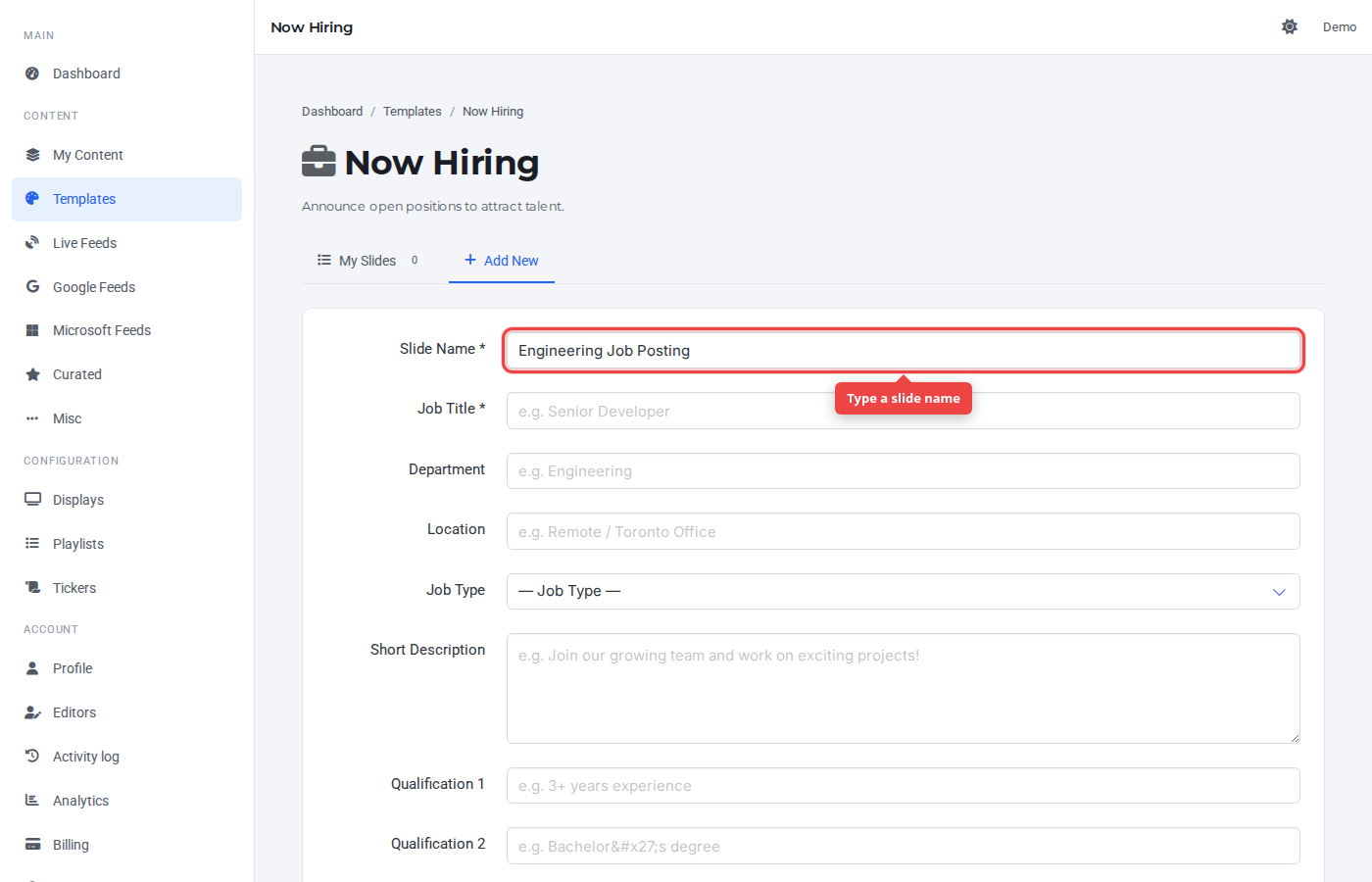
Navigate to the Now Hiring tile in the Templates section. Click the Add New tab. Type a slide name in the Slide Name field — this label appears in the Control Panel only.
Step 2 — Fill the template fields
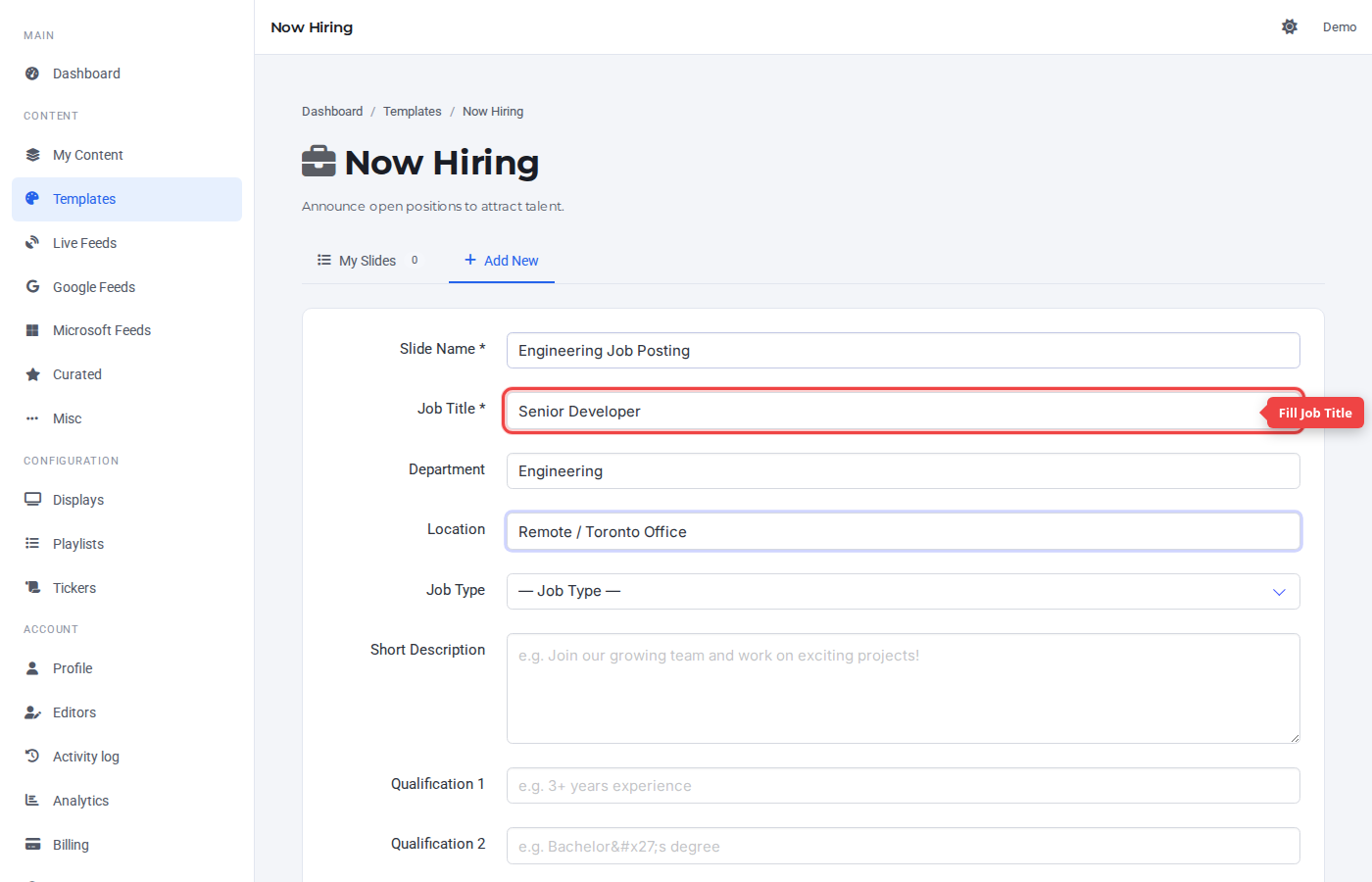
Required fields are marked with *. The screenshot shows the first required field highlighted. Fill any optional fields you want to display.
Step 3 — Click Add Slide
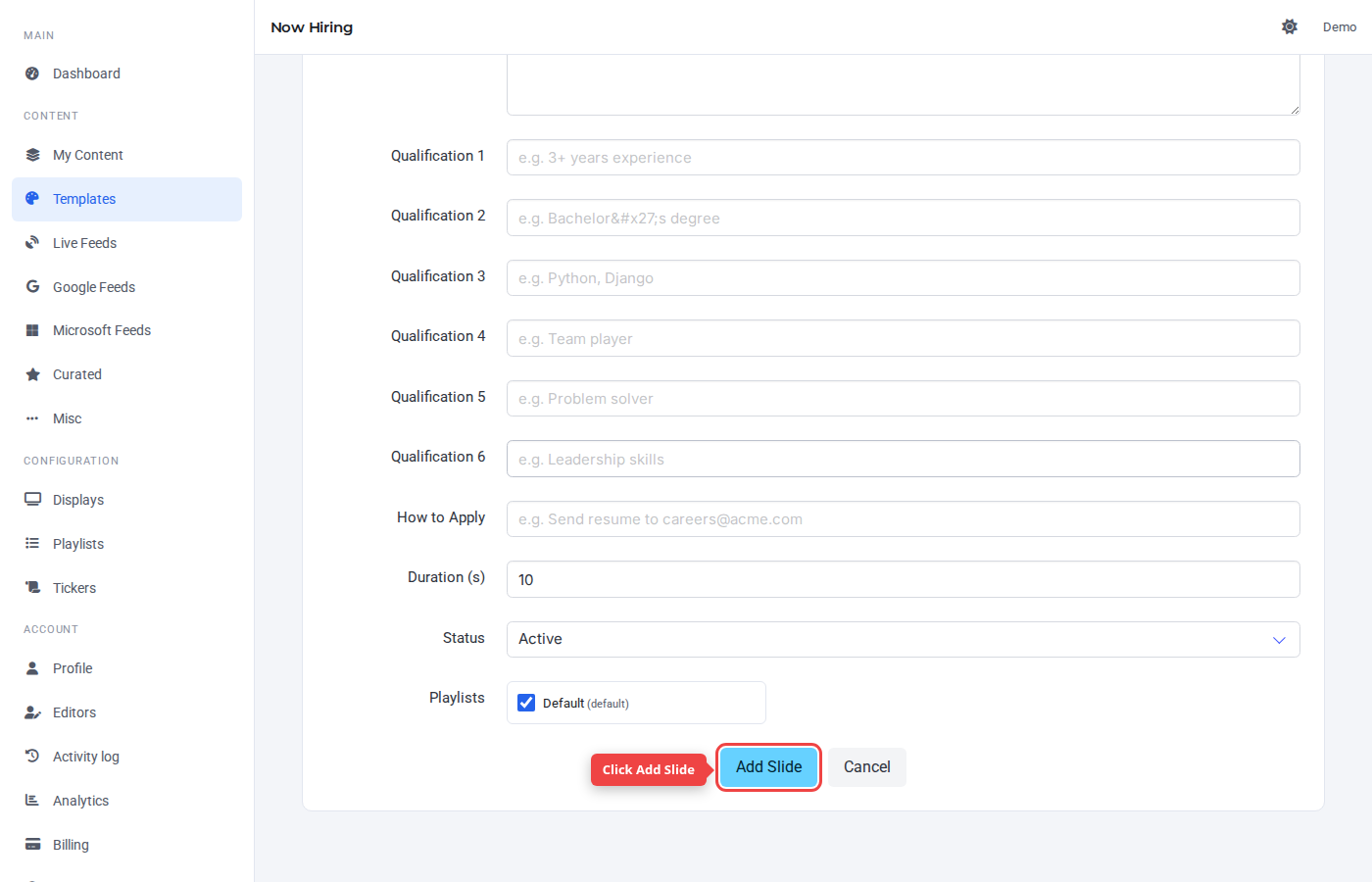
The default duration of 10 seconds works for most cases — bump it up if the slide has a lot of text. Leave Status on Active so the slide plays right away.
Step 4 — Confirm in My Slides
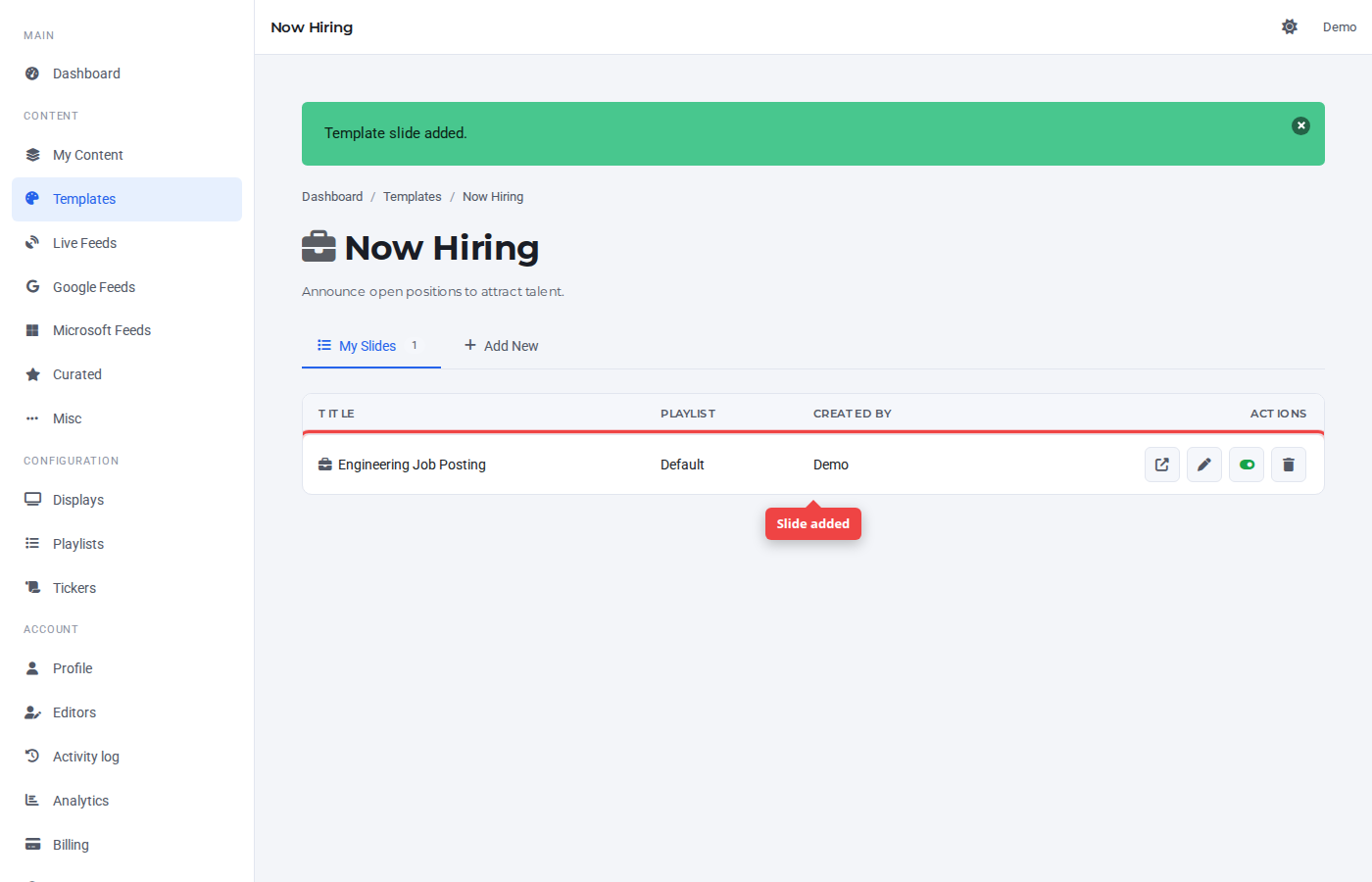
The slide appears in the My Slides tab. The right-most controls are preview, edit, active toggle, and delete.
Was this article helpful? If you need more help, open a support ticket.
Sign in to open a ticket