Add a text slide to your library and assign it to a playlist so it plays on TVs running that playlist.
Step 1 — Open My Content
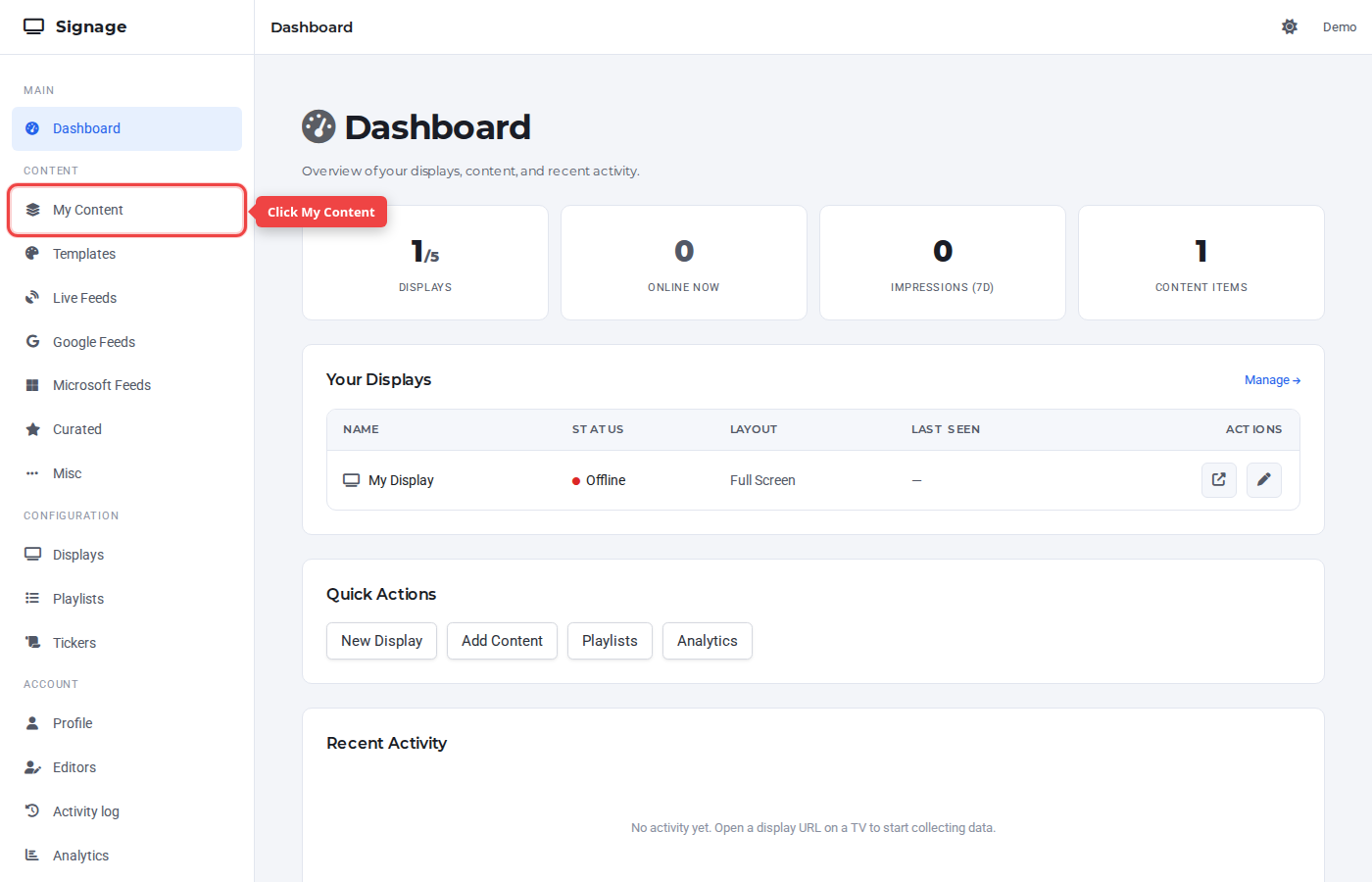
In the sidebar under Content, click My Content.
Step 2 — Open the Text page
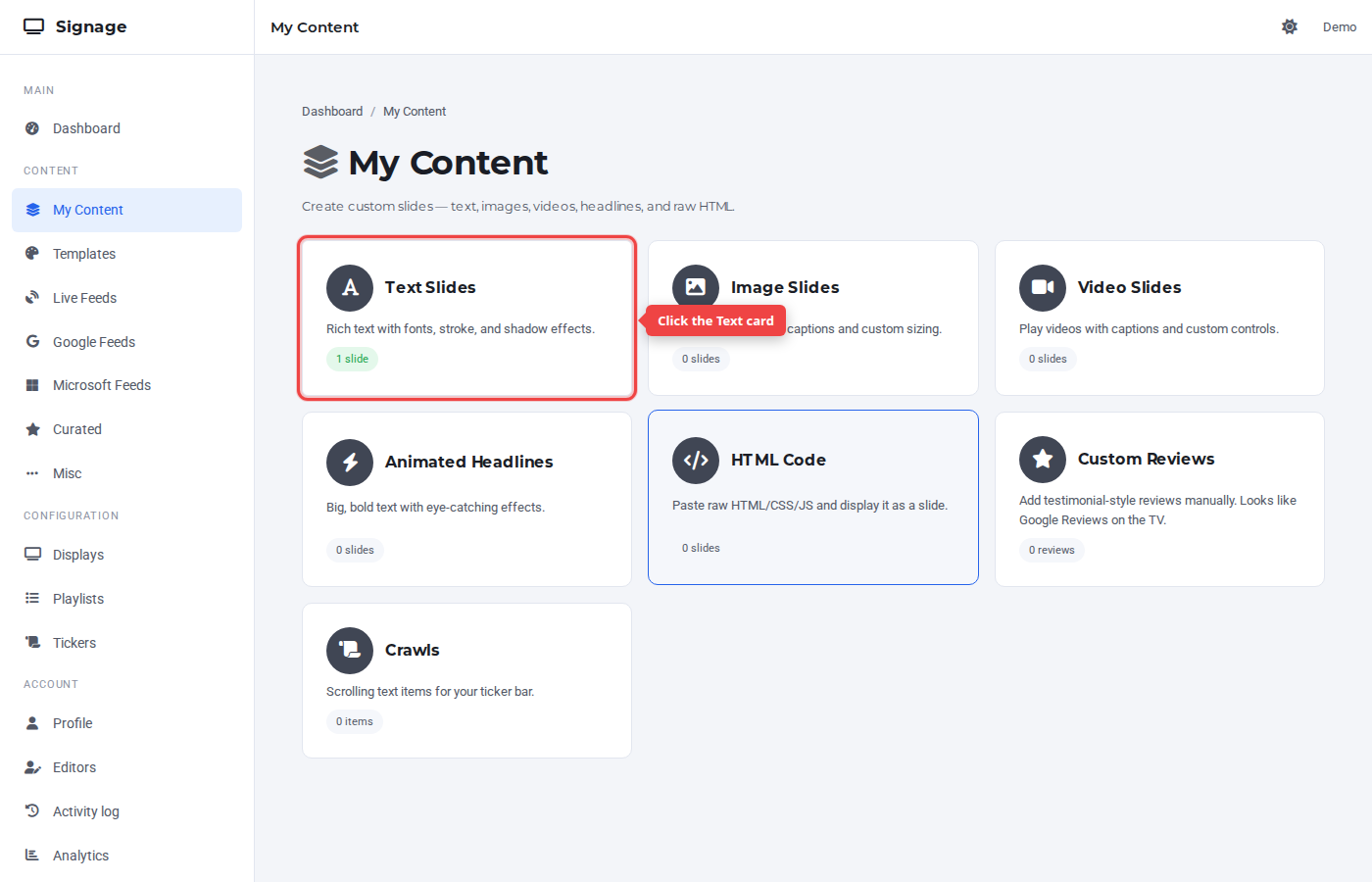
Click the Text card.
Step 3 — Switch to the Add New tab
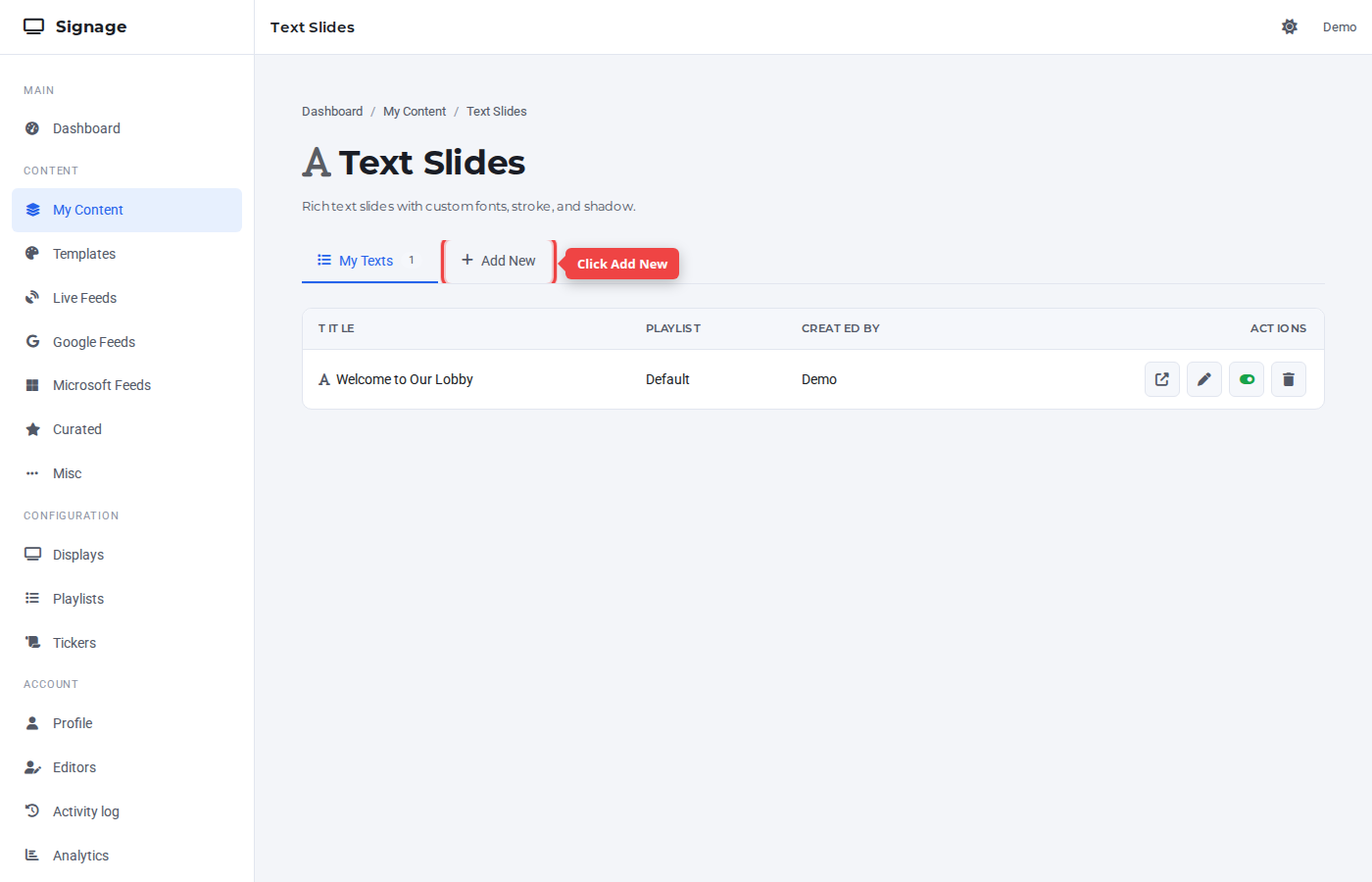
The Text Slides page lists existing items under My Texts. Click the + Add New tab to create a new slide.
Step 4 — Enter a title
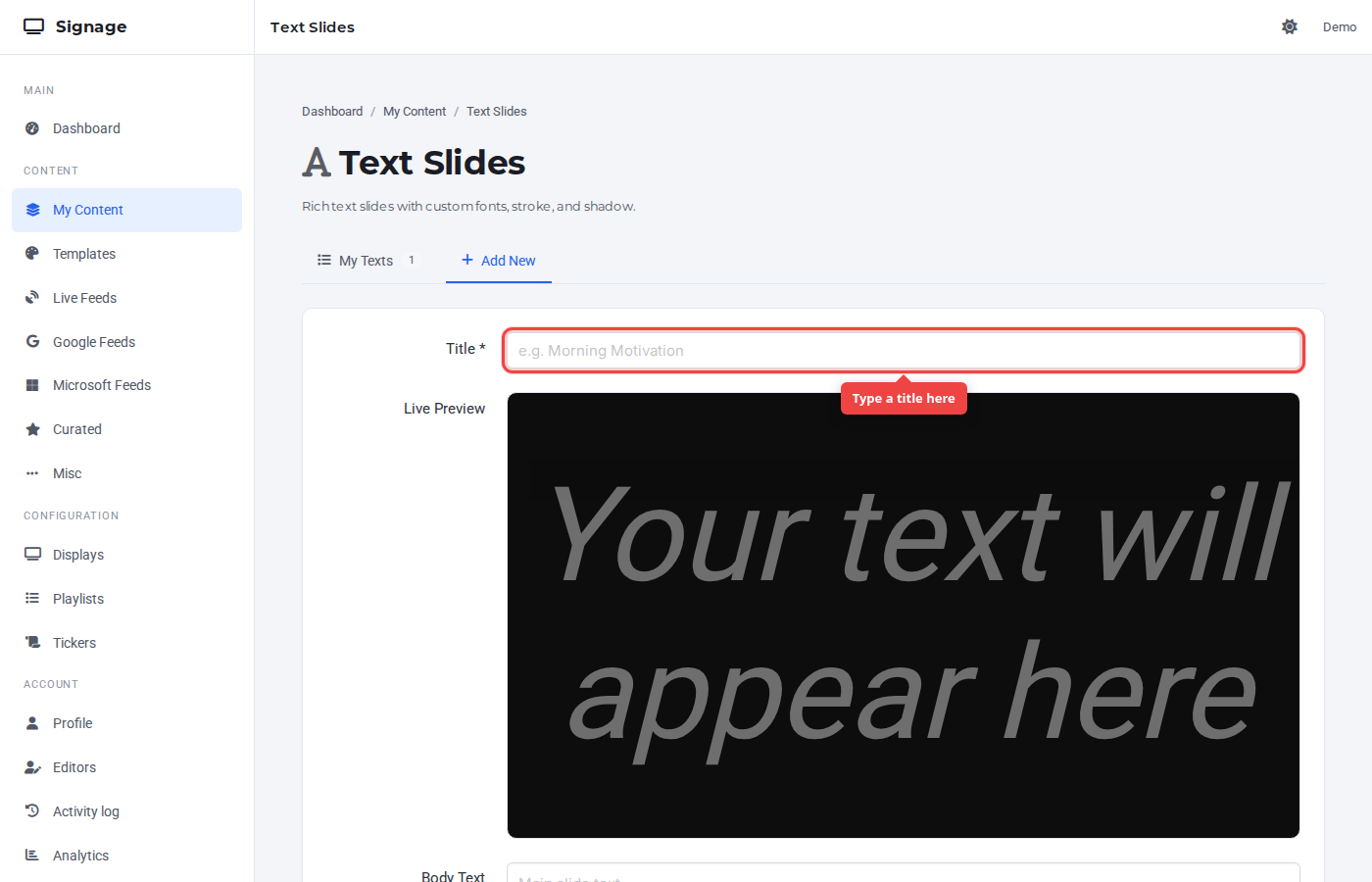
The Title is a label for the Control Panel — it's not shown on TV.
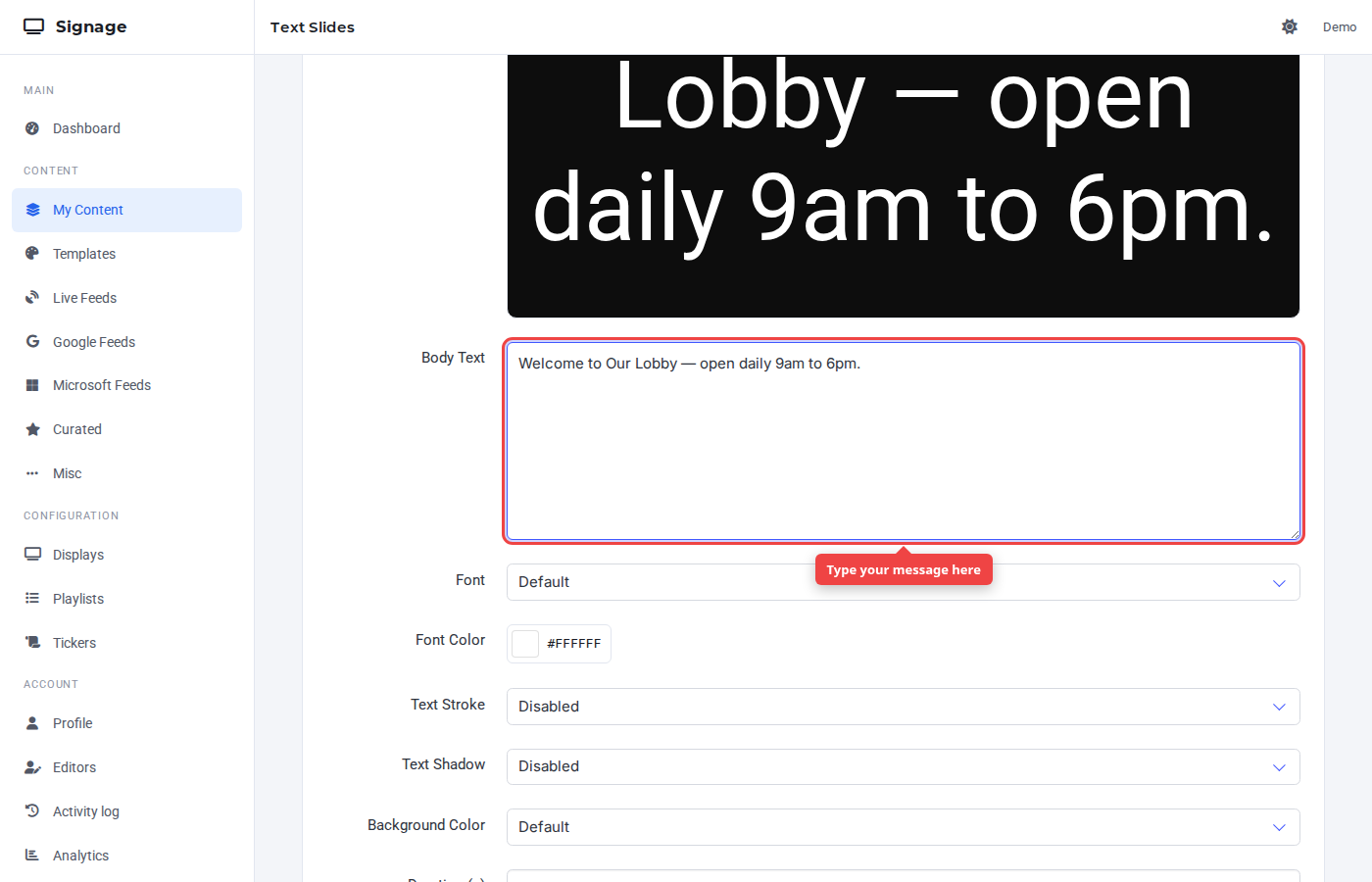
Step 5 — Enter the body text
The Body Text is what appears on screen. The Live Preview reflects styling changes as you edit. Font, color, stroke, shadow, background, and duration are configurable below — defaults are sensible.
Step 6 — Submit
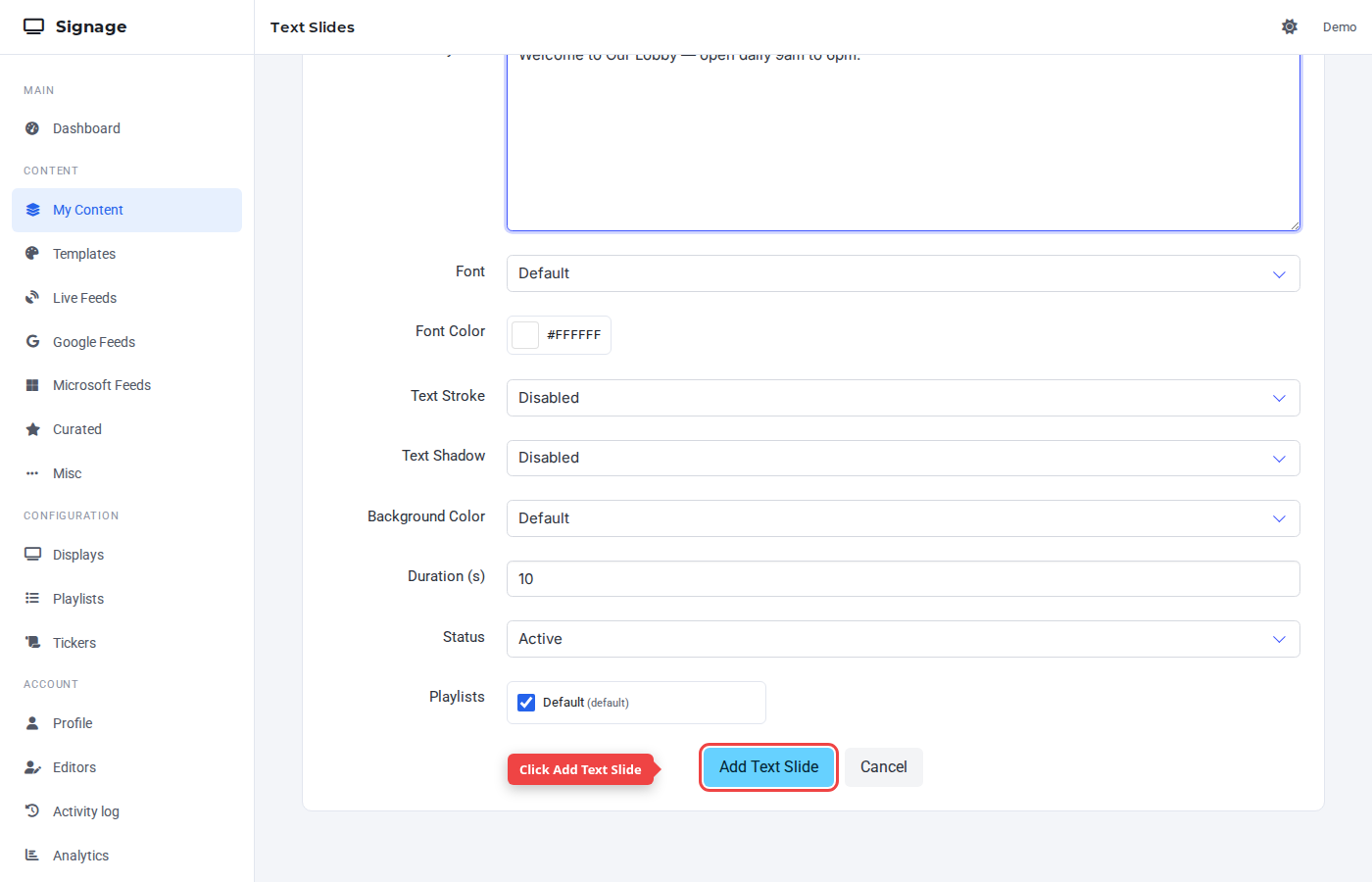
Click Add Text Slide.
Step 7 — Confirm in the list
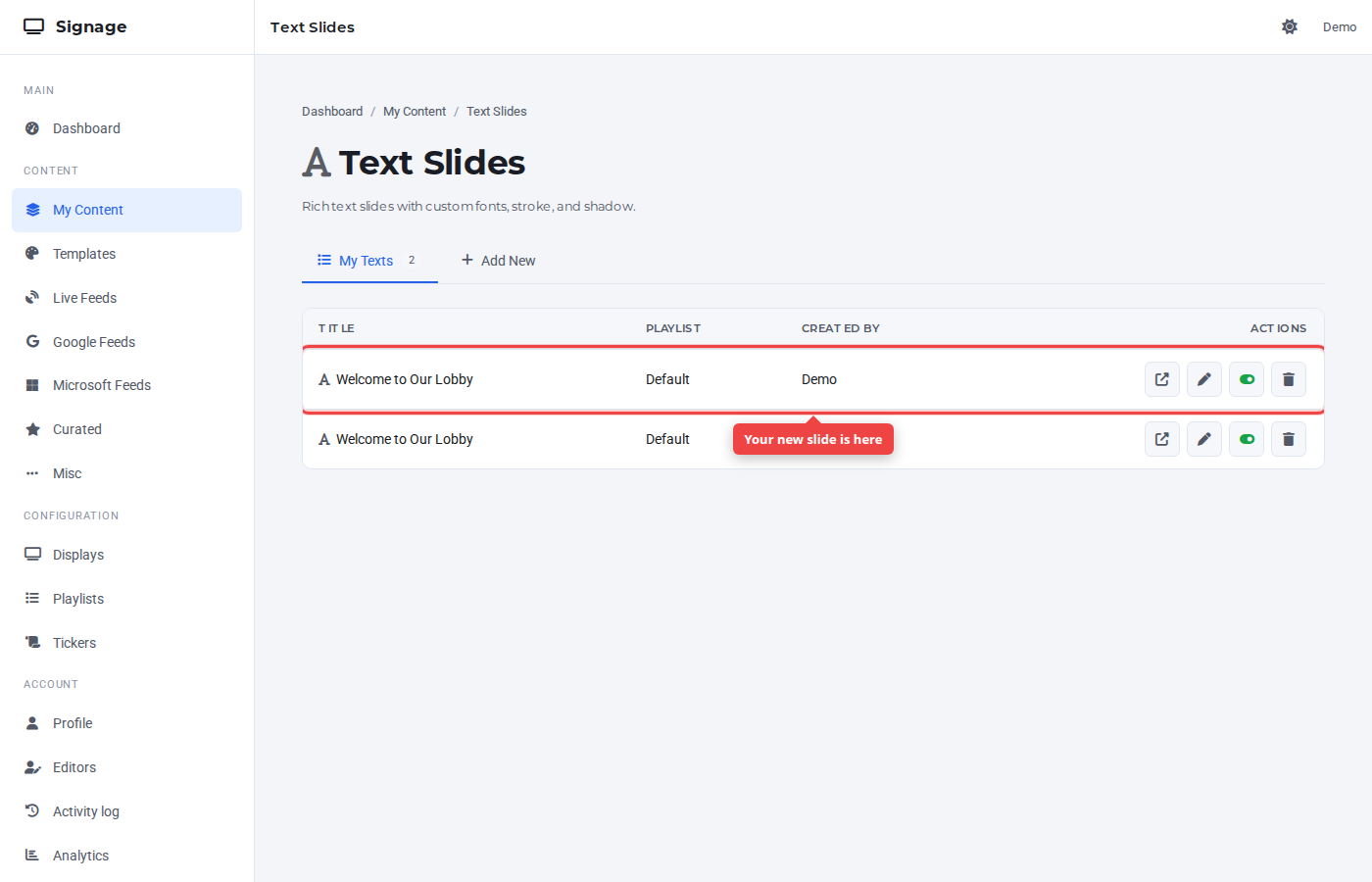
The new slide appears at the top of My Texts, assigned to the default playlist. It will play on any display whose layout includes that playlist.
Reference
- Preview — external-link icon opens the slide in a TV-style preview.
- Edit — pen icon reopens the form with the saved values.
- Toggle — switch hides the slide from playback without deleting it.
- Playlists — assign to one or more playlists from the checkbox grid at the bottom of the form.
Was this article helpful? If you need more help, open a support ticket.
Sign in to open a ticket