Animated headlines are short, eye-catching messages with a CSS effect (e.g. flashing, scrolling) — useful for promotions and announcements.
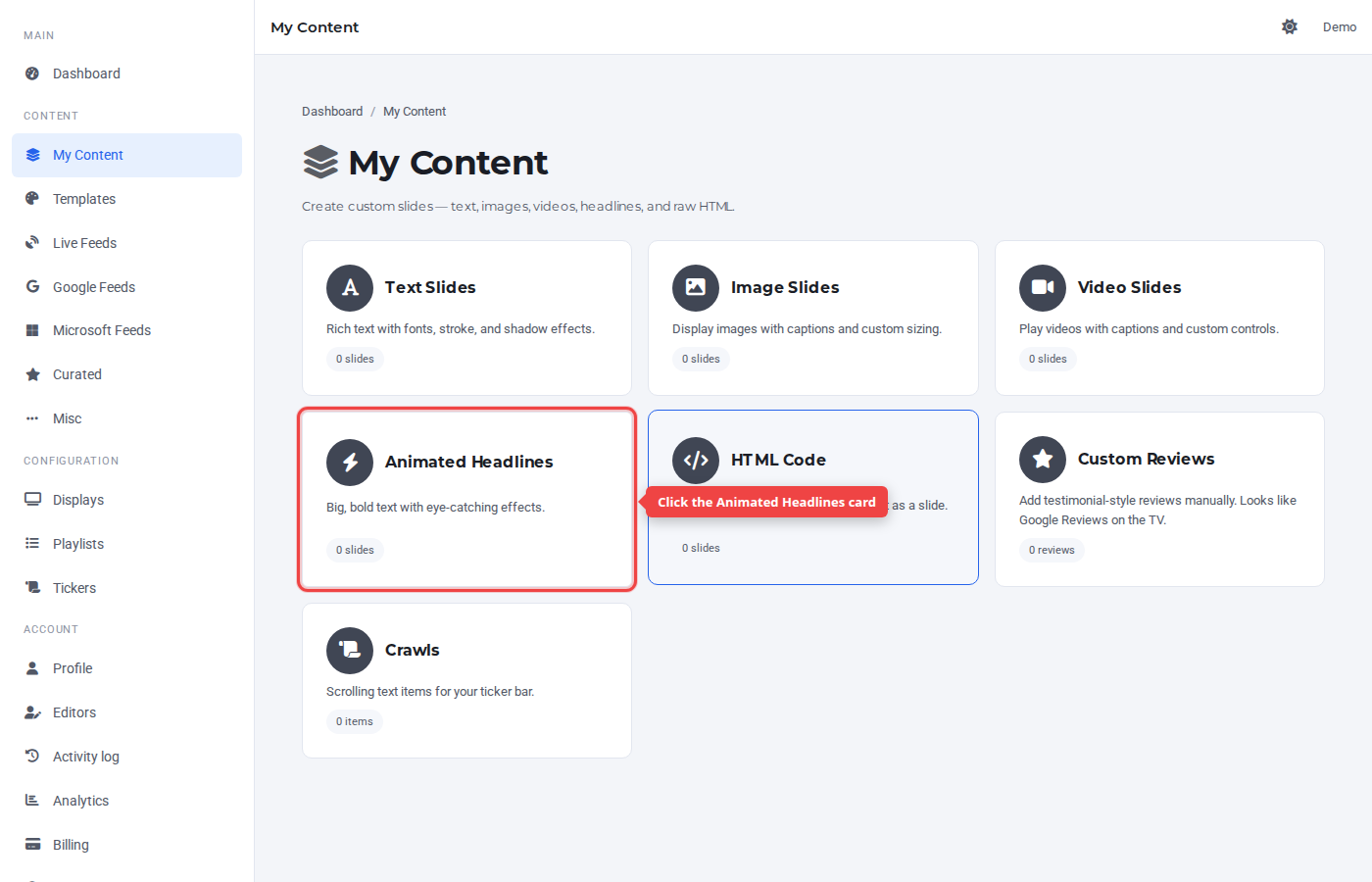
Step 1 — Open My Content and click Animated Headlines
In the sidebar under Content, click My Content, then the Animated Headlines card.
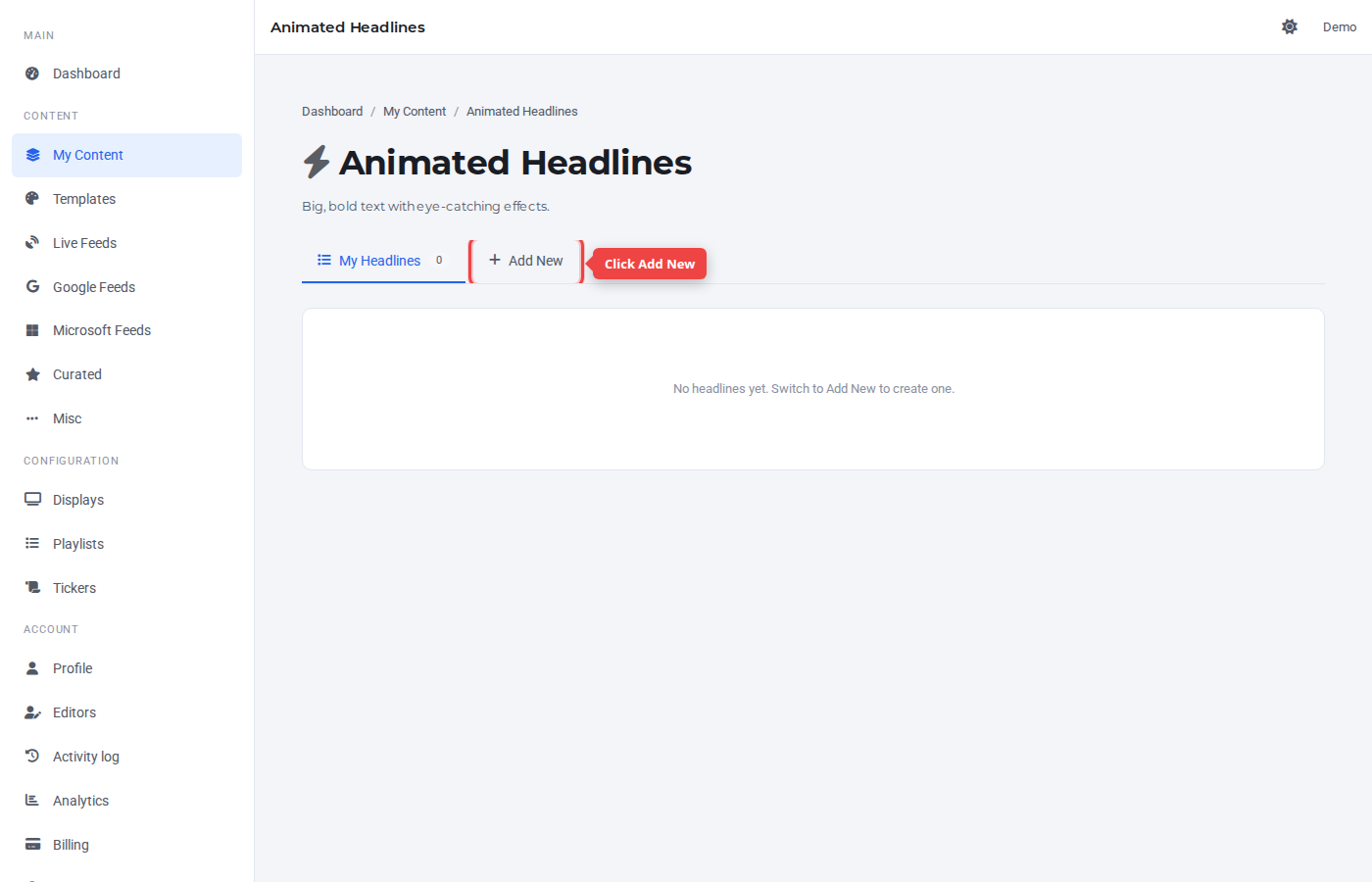
Step 2 — Switch to the Add New tab
Click the + Add New tab.
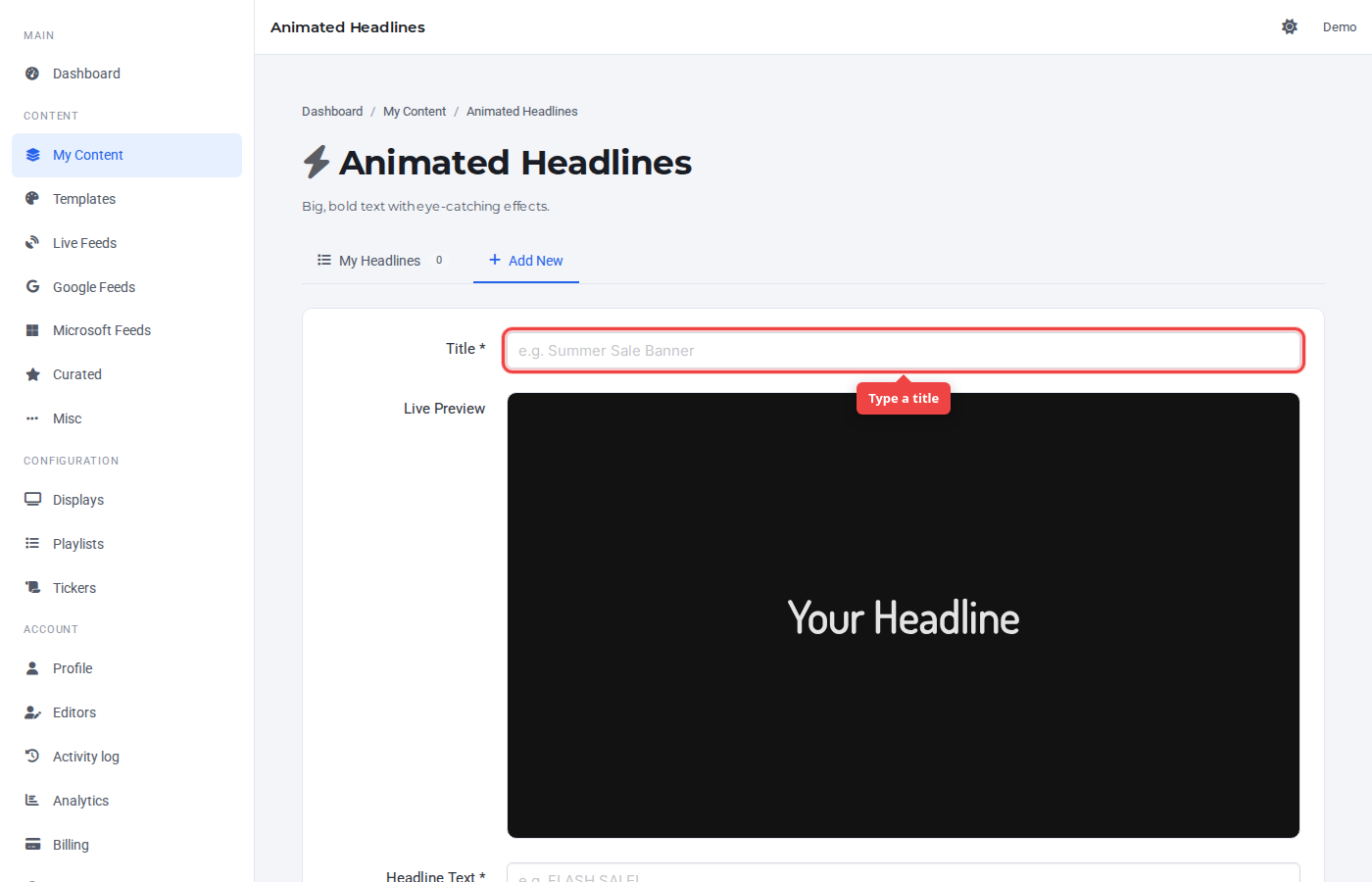
Step 3 — Enter a title
The Title is a label for the Control Panel — it's not shown on TV.
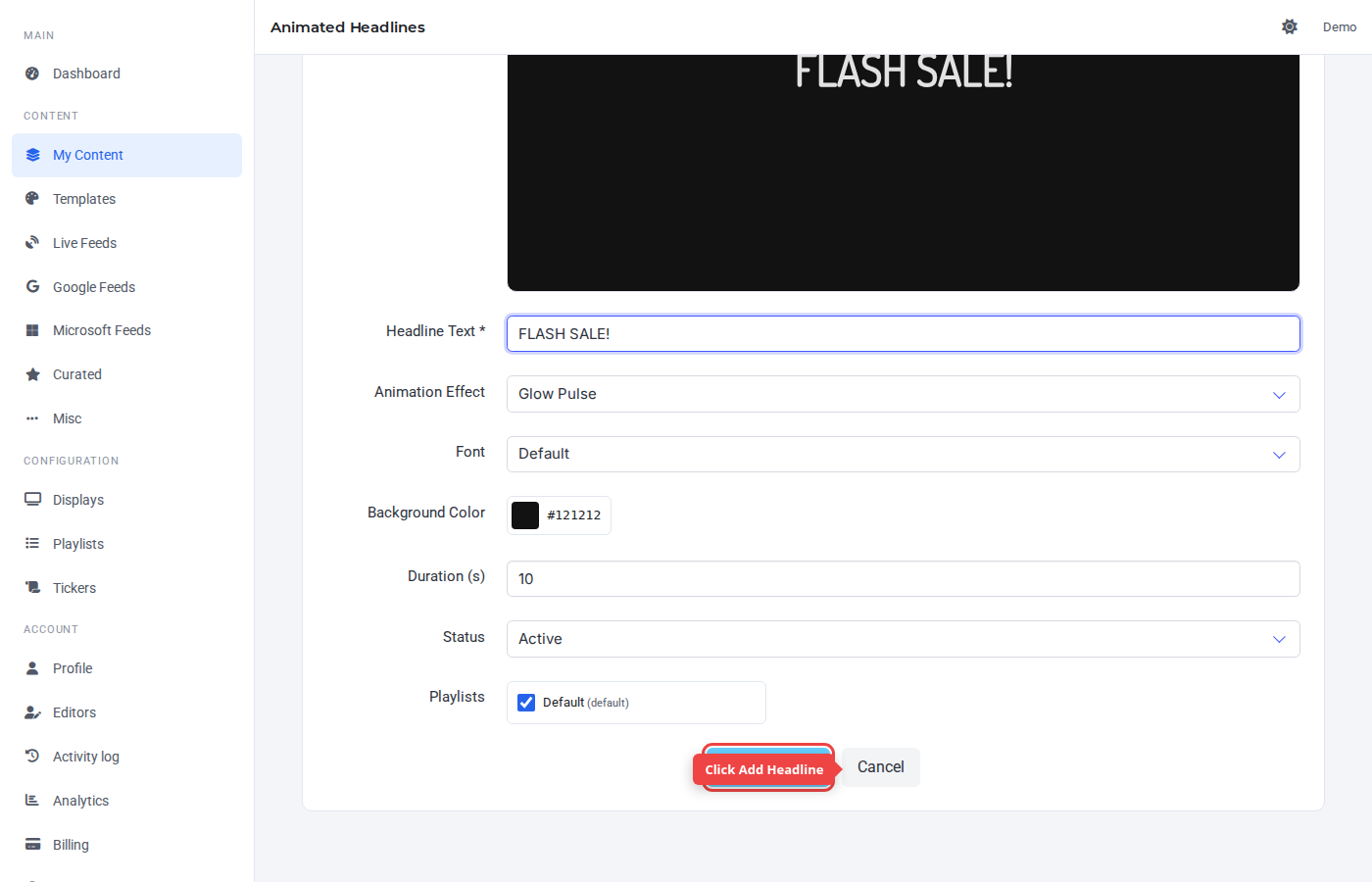
Step 4 — Enter the headline text
The Headline field is the text shown on TV. Keep it short — animated headlines are designed for one strong line, not paragraphs.
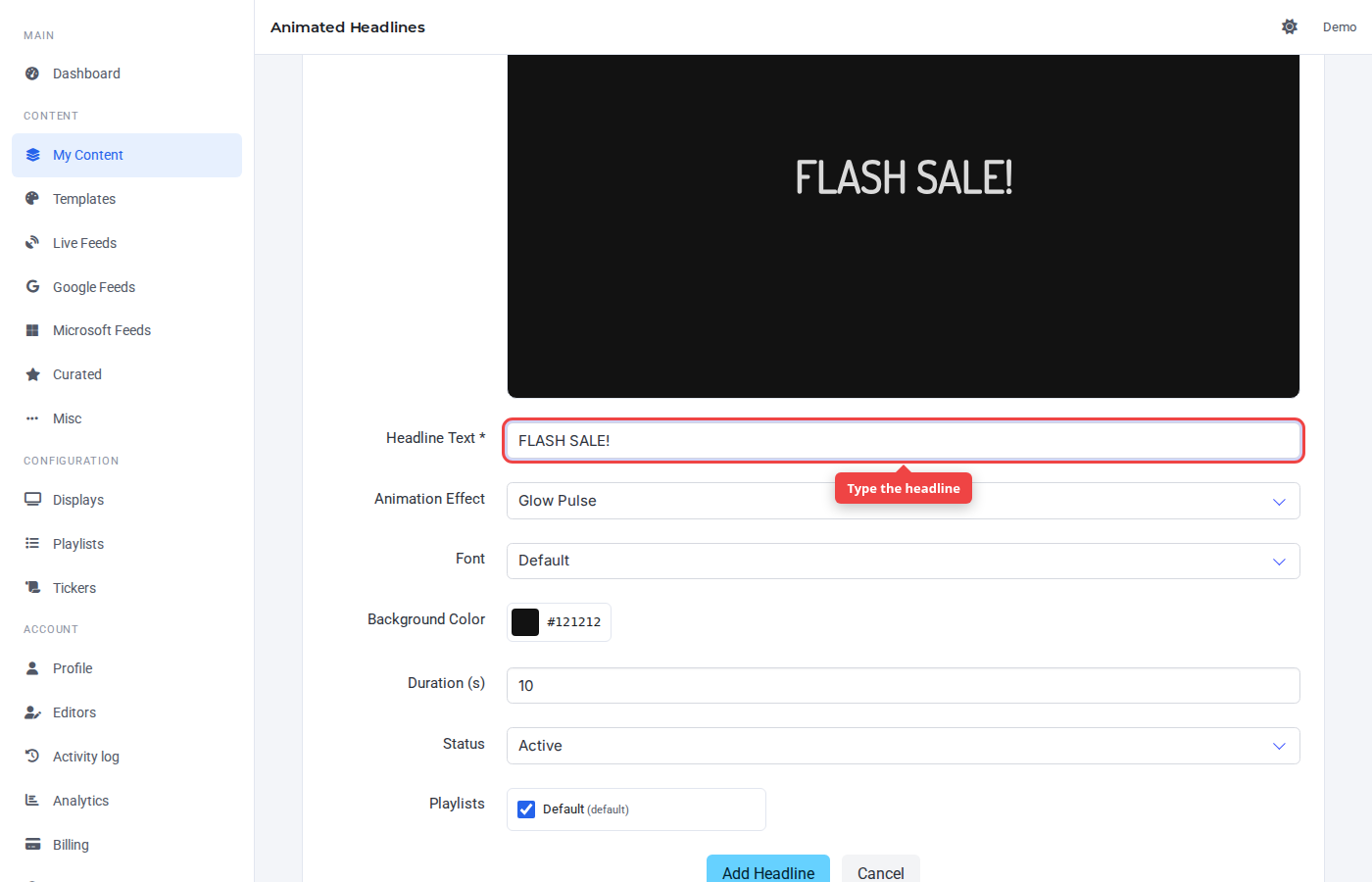
Step 5 — Submit
Click Add Headline. Effect, font, and background colour are configurable but optional — defaults are sensible.
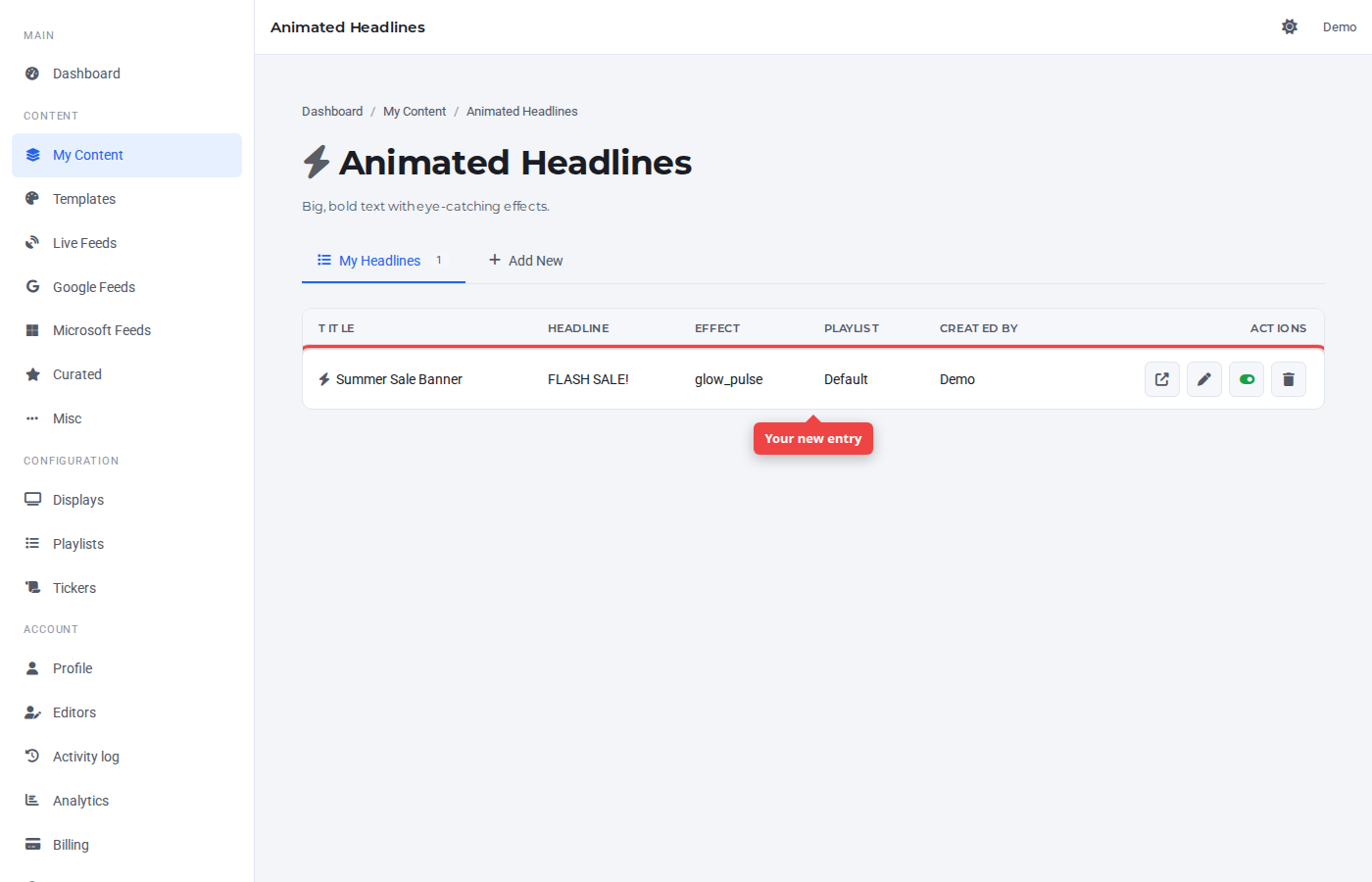
Step 6 — Confirm in the list
The new headline appears at the top of the list, assigned to the default playlist.
Was this article helpful? If you need more help, open a support ticket.
Sign in to open a ticket