Add an image to your library and assign it to a playlist so it plays on TVs running that playlist.
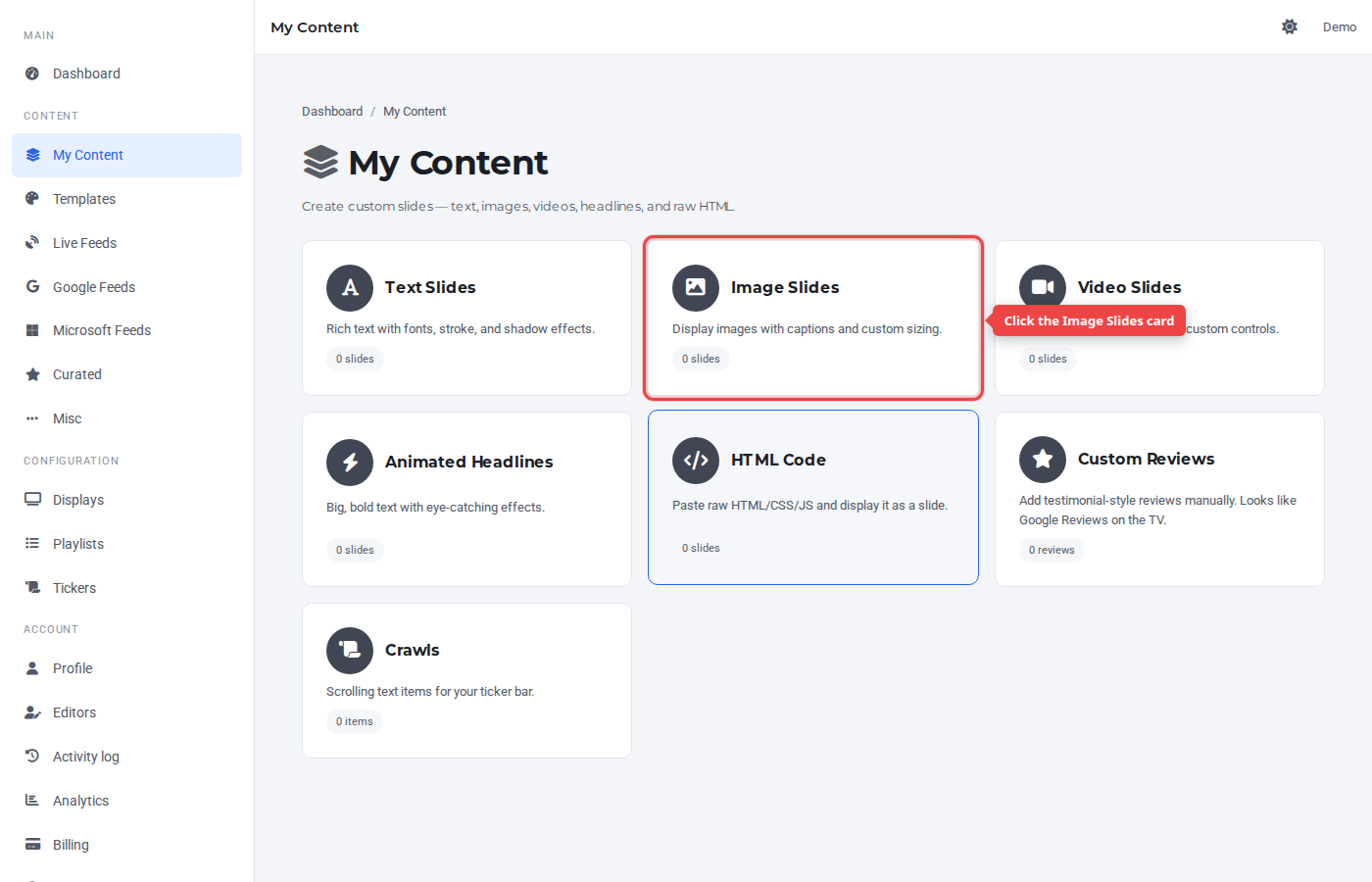
Step 1 — Open My Content and click Image Slides
In the sidebar under Content, click My Content, then click the Image Slides card.
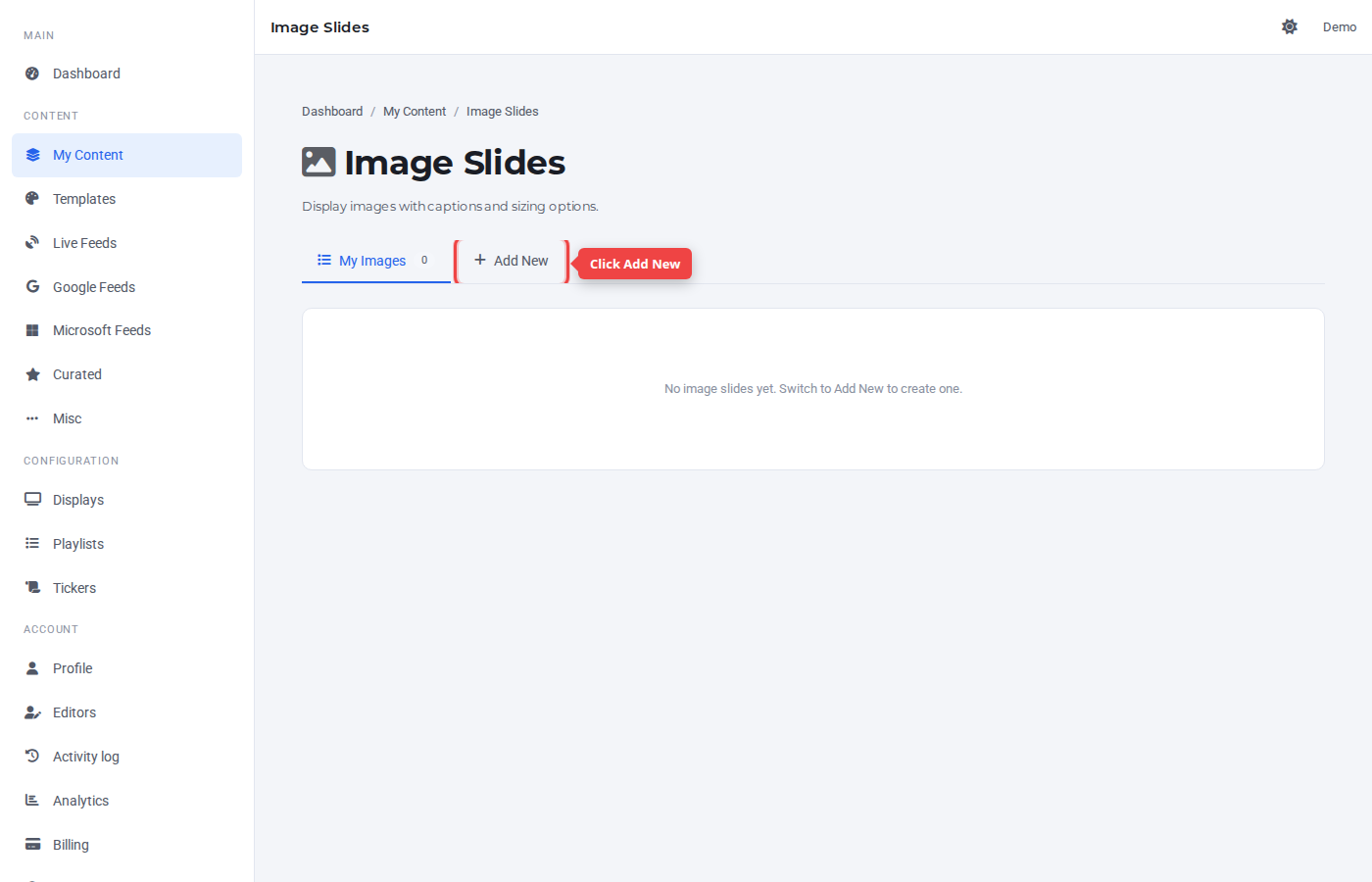
Step 2 — Switch to the Add New tab
Click the + Add New tab.
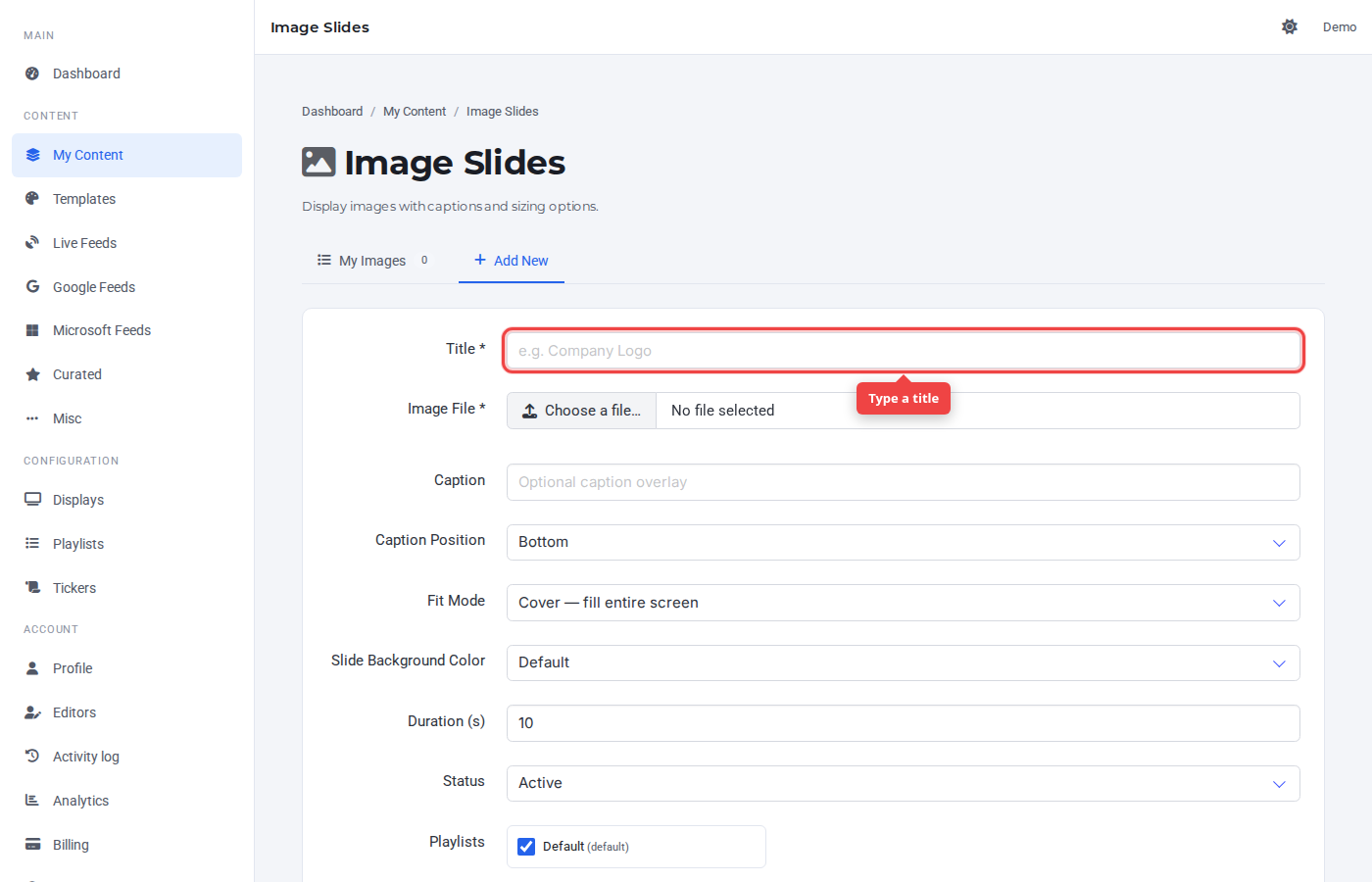
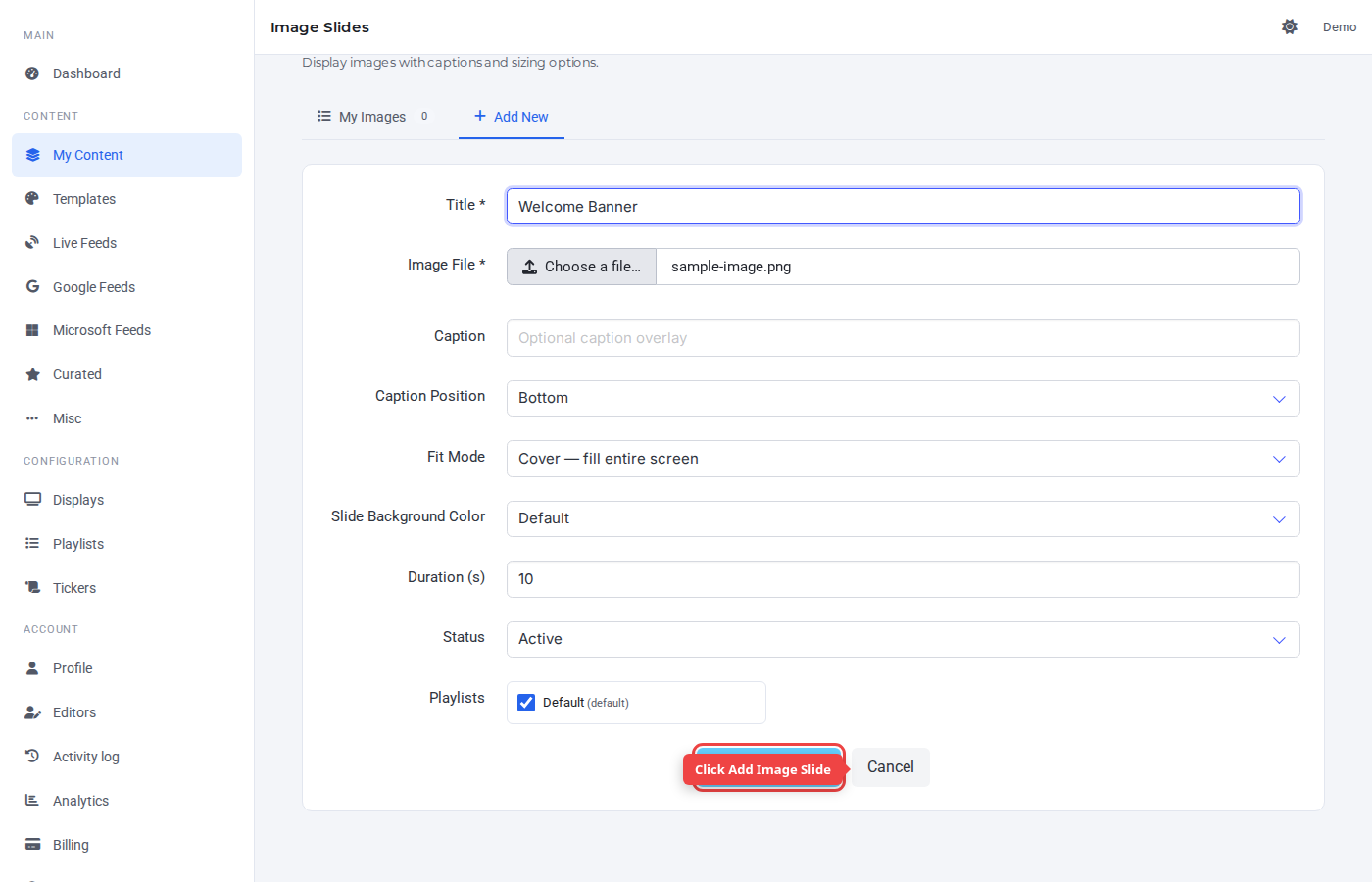
Step 3 — Enter a title
The Title is a label for the Control Panel — it's not shown on TV.
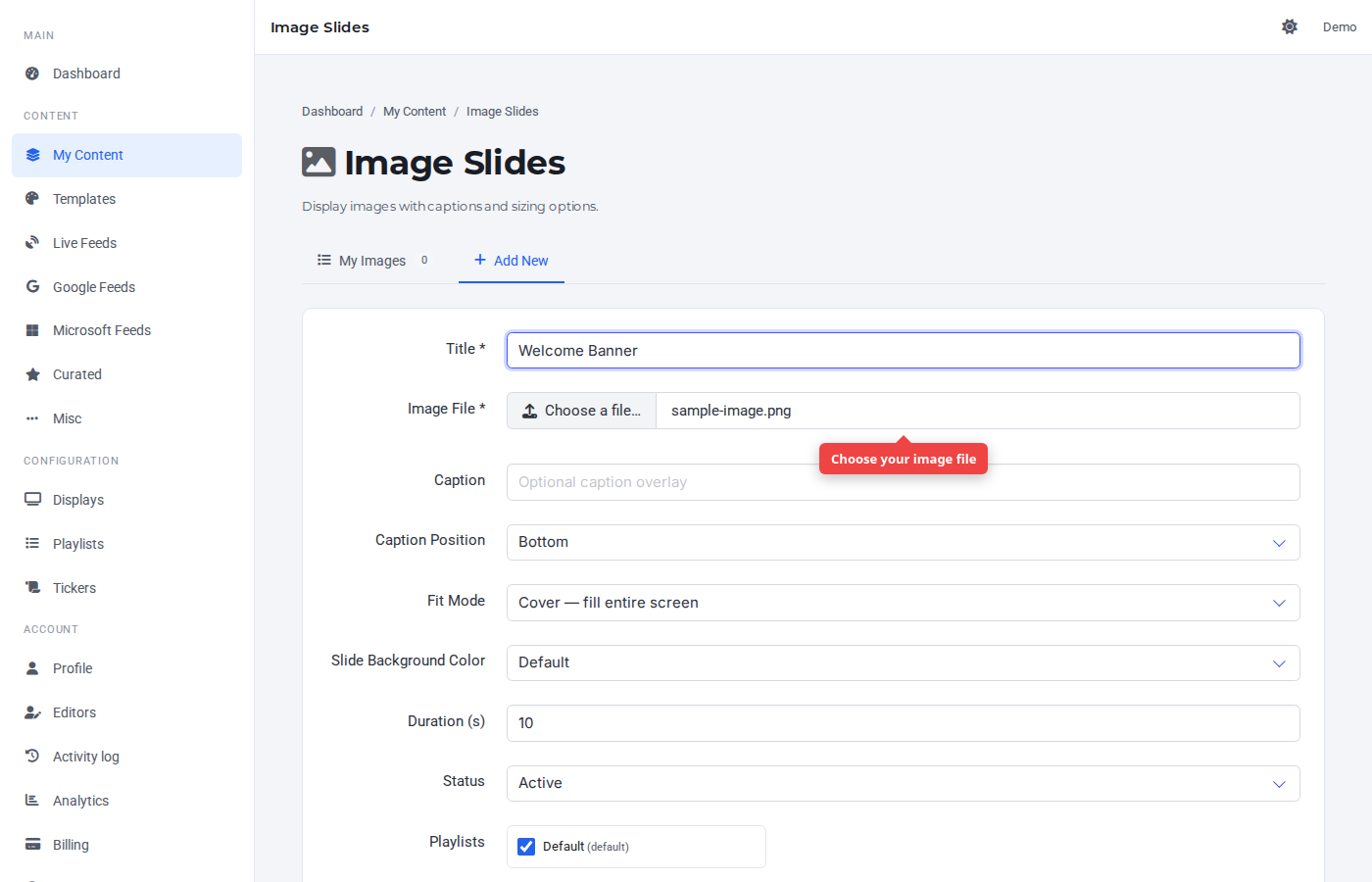
Step 4 — Choose the image file
Click the file input and pick a PNG or JPG. PNG with transparency works for logos.
Step 5 — Submit
Click Add Image Slide. Caption, fit mode, background, border, and duration are configurable but optional — defaults are sensible.
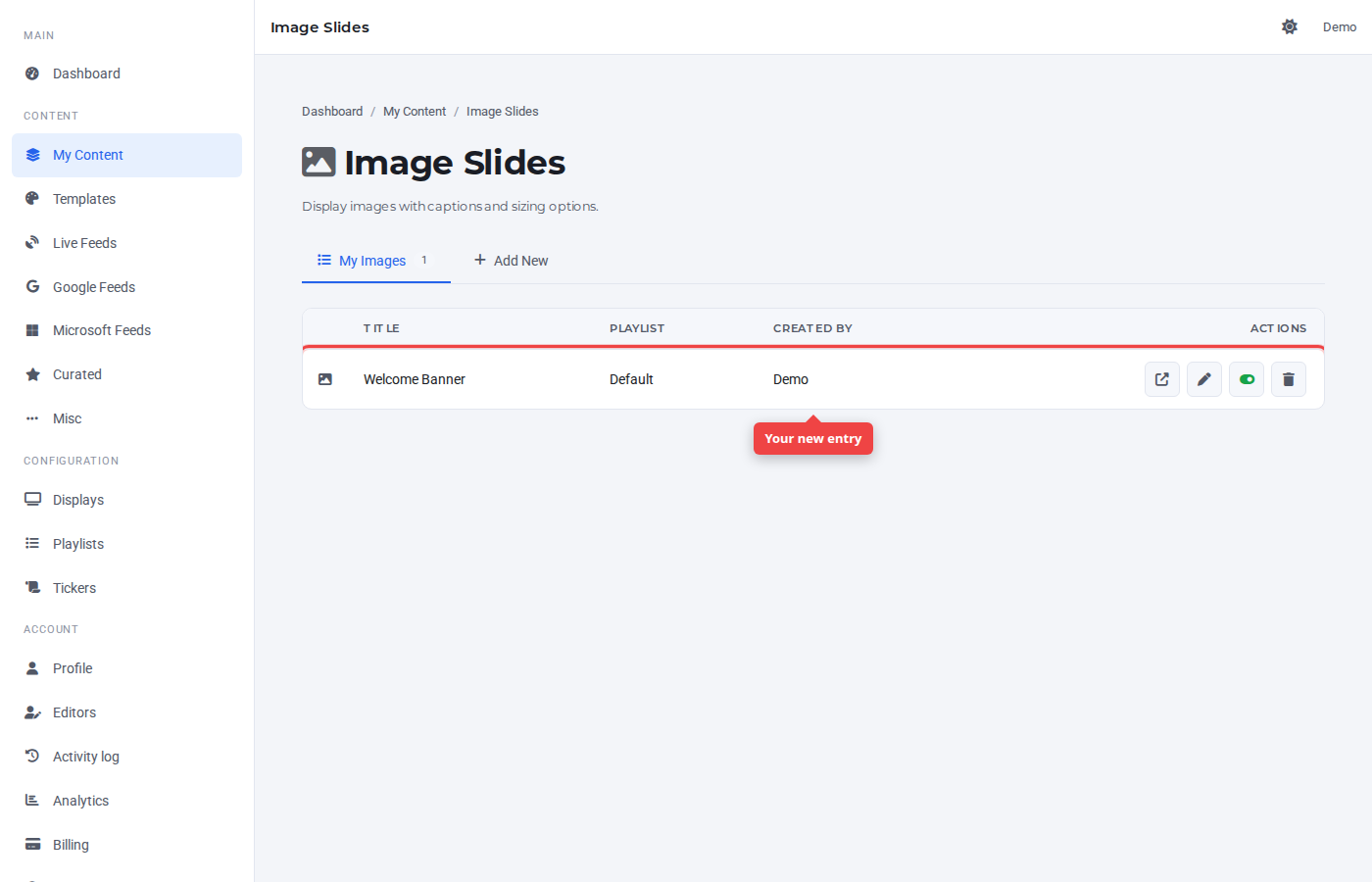
Step 6 — Confirm in the list
The new image appears at the top of My Images, assigned to the default playlist.
Was this article helpful? If you need more help, open a support ticket.
Sign in to open a ticket