Render arbitrary HTML / CSS / JS as a slide. Useful for custom widgets and dynamic content the built-in slide types don't cover.
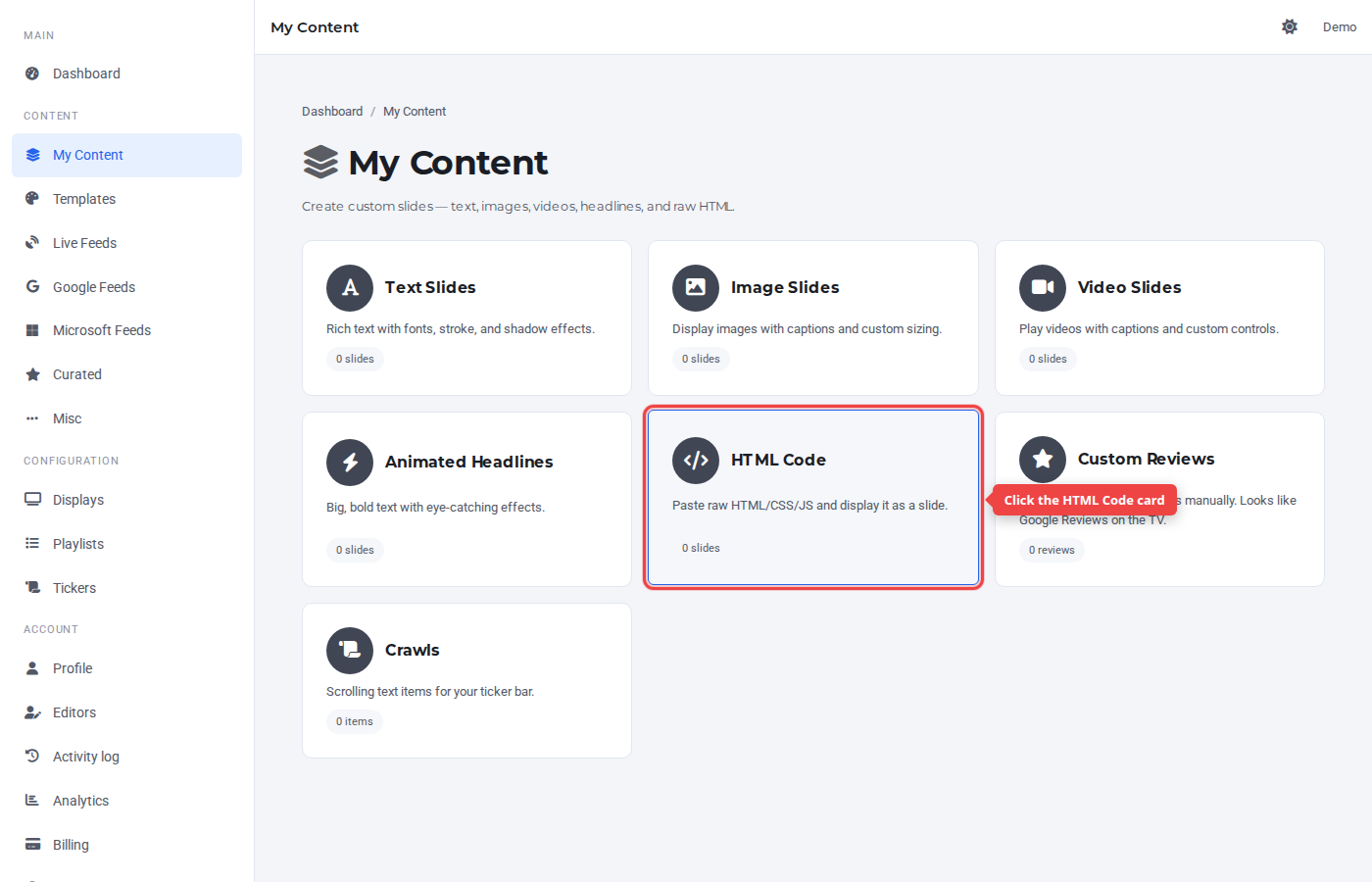
Step 1 — Open My Content and click HTML Code
In the sidebar under Content, click My Content, then the HTML Code card.
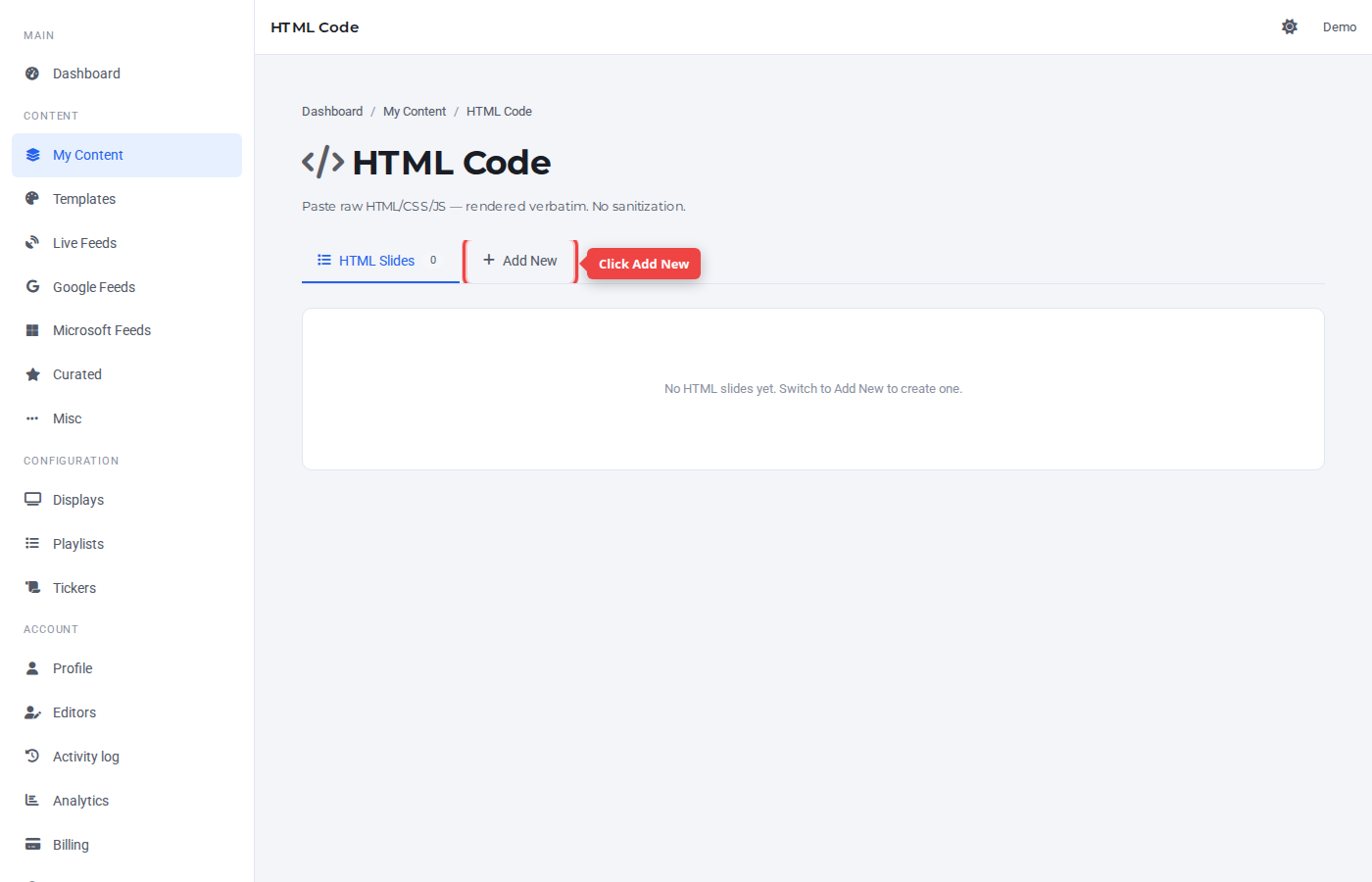
Step 2 — Switch to the Add New tab
Click the + Add New tab.
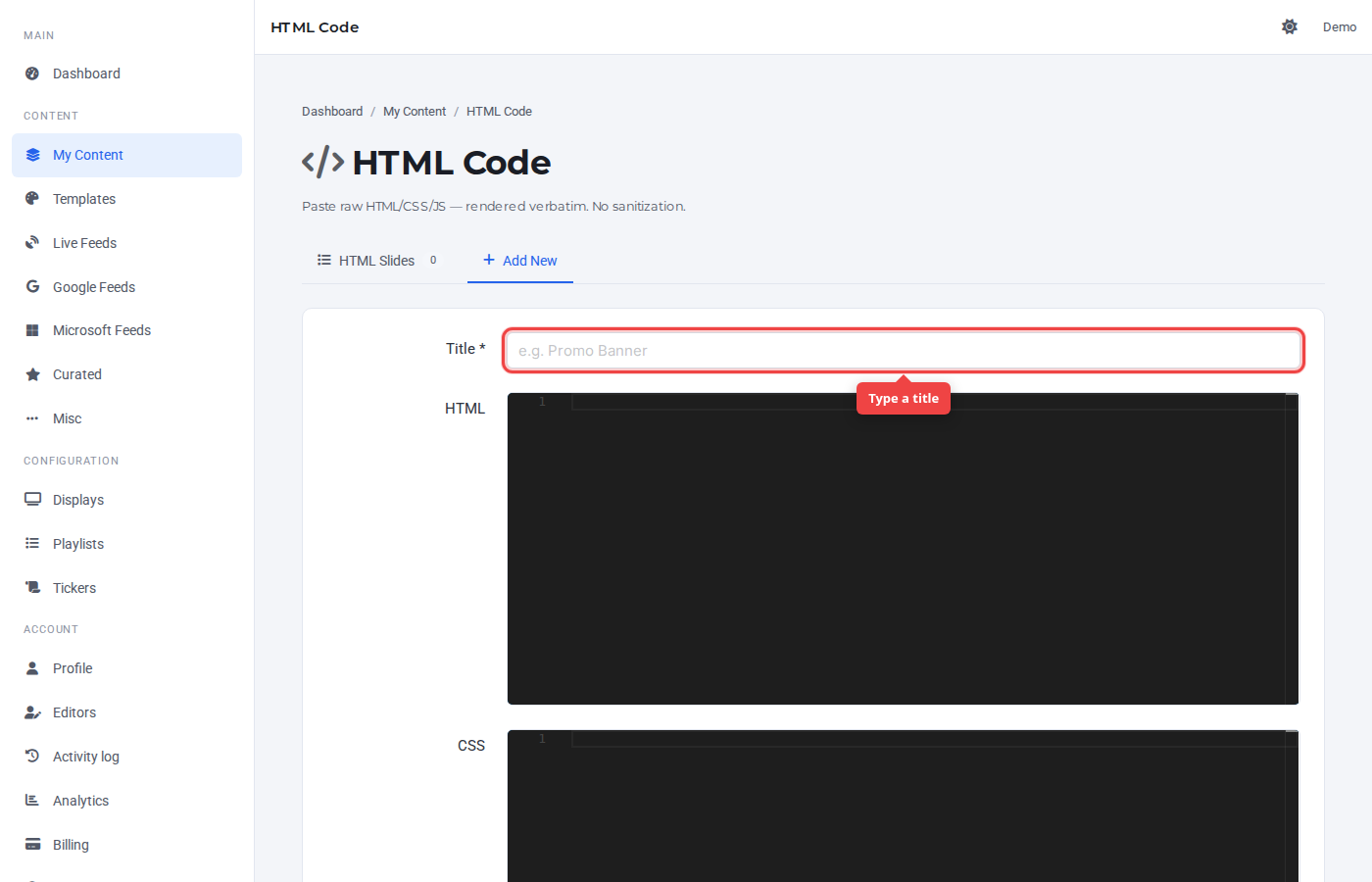
Step 3 — Enter a title
The Title is a label for the Control Panel — it's not shown on TV.
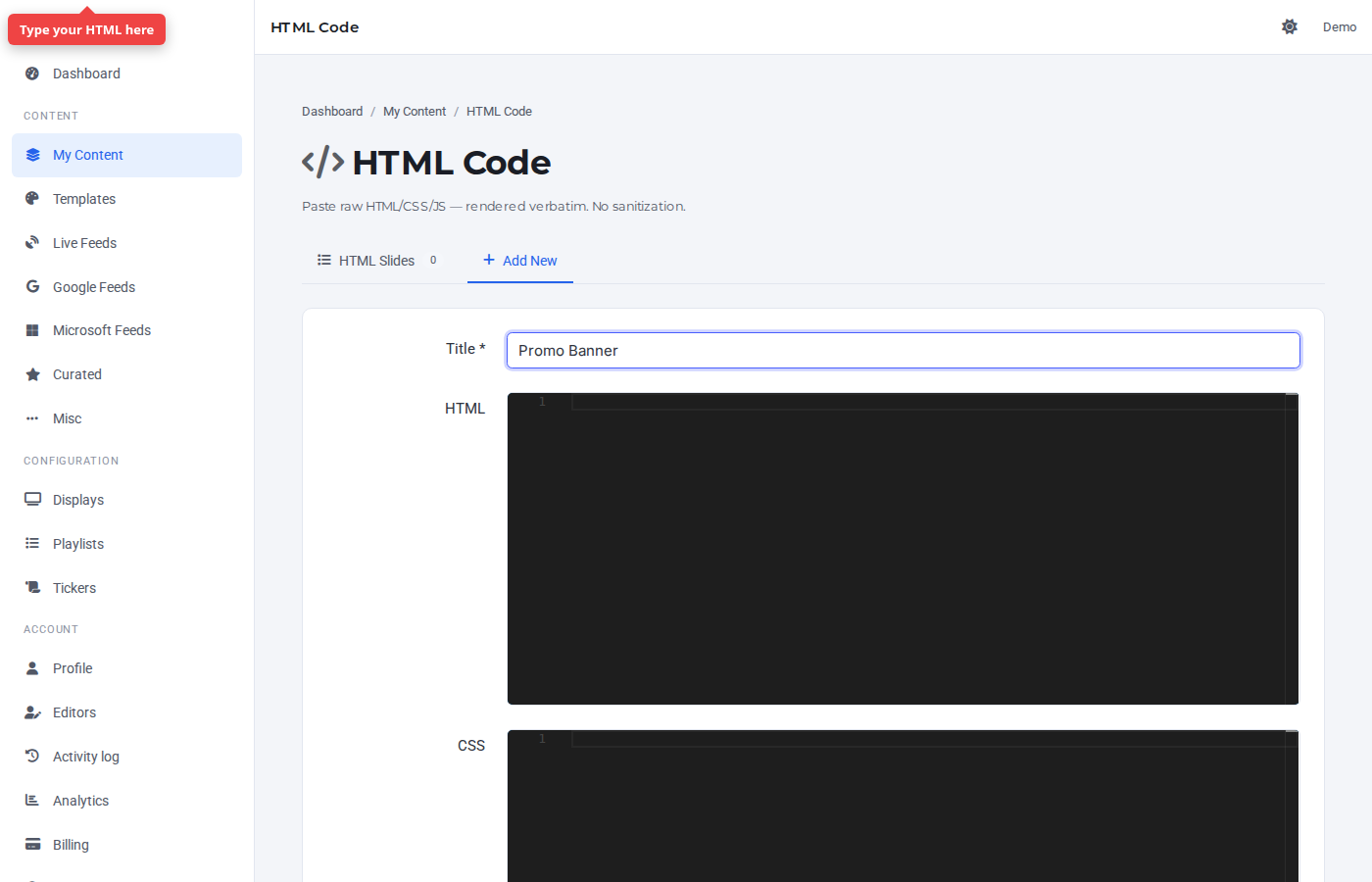
Step 4 — Write the HTML / CSS / JS
The form has three editors: HTML, CSS, and JS. Anything you'd write in a normal browser tab works here, scoped to a single slide.
Step 5 — Submit
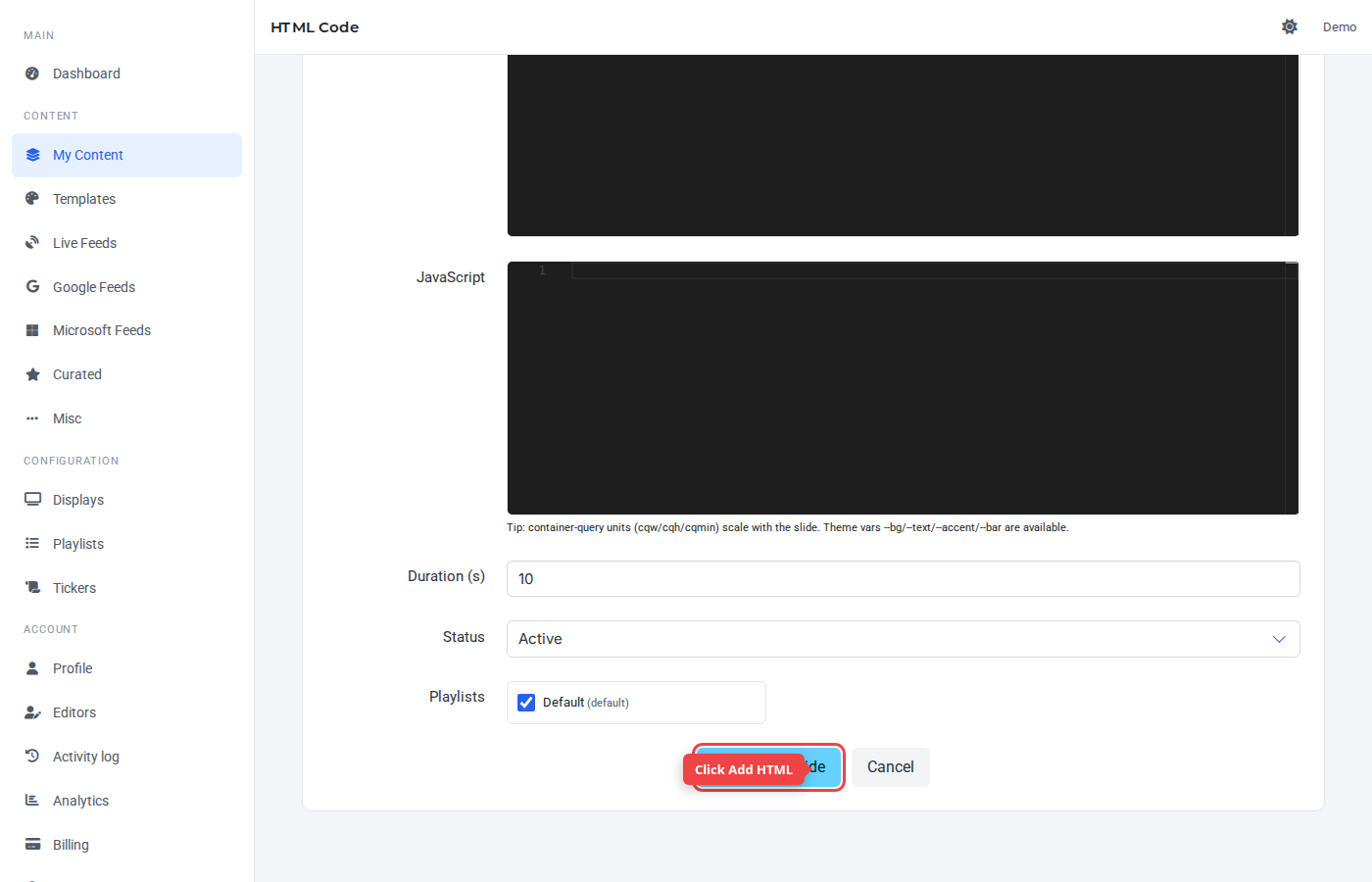
Click Add HTML. Default duration (10 s) is sensible for most widgets.
Step 6 — Confirm in the list
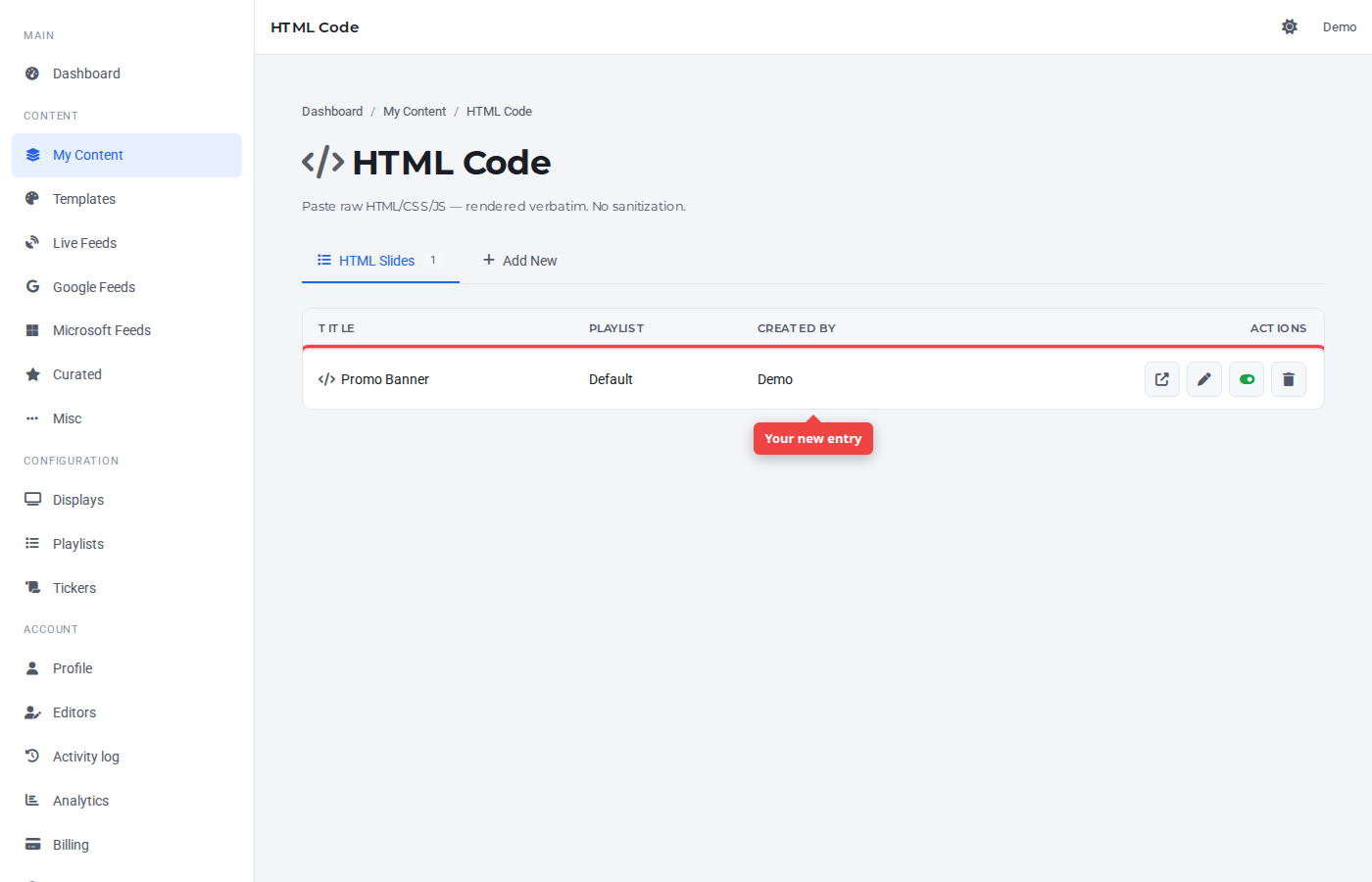
The new HTML slide appears at the top of the list, assigned to the default playlist.
Was this article helpful? If you need more help, open a support ticket.
Sign in to open a ticket