Hide an HTML slide from playback without deleting it. Re-enable any time.
Step 1 — Open the HTML Code list
Find the row you want to disable. The third icon in the row (between the pen and trash) is the active toggle — green when on, grey when off.
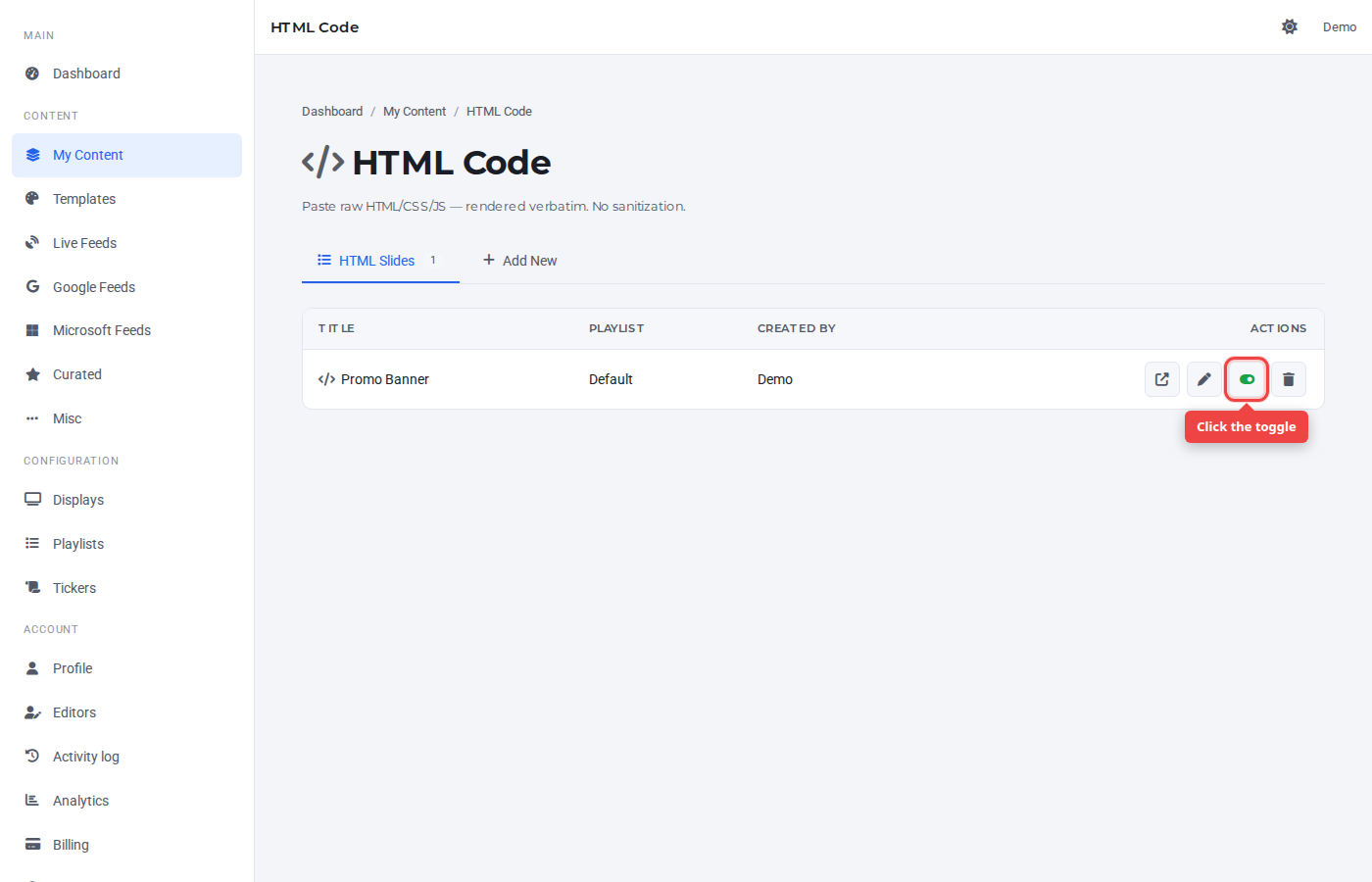
Step 2 — Click the toggle
One click flips the state. The icon goes from green (on) to grey (off). The row stays in the list — only its playback flag changes.
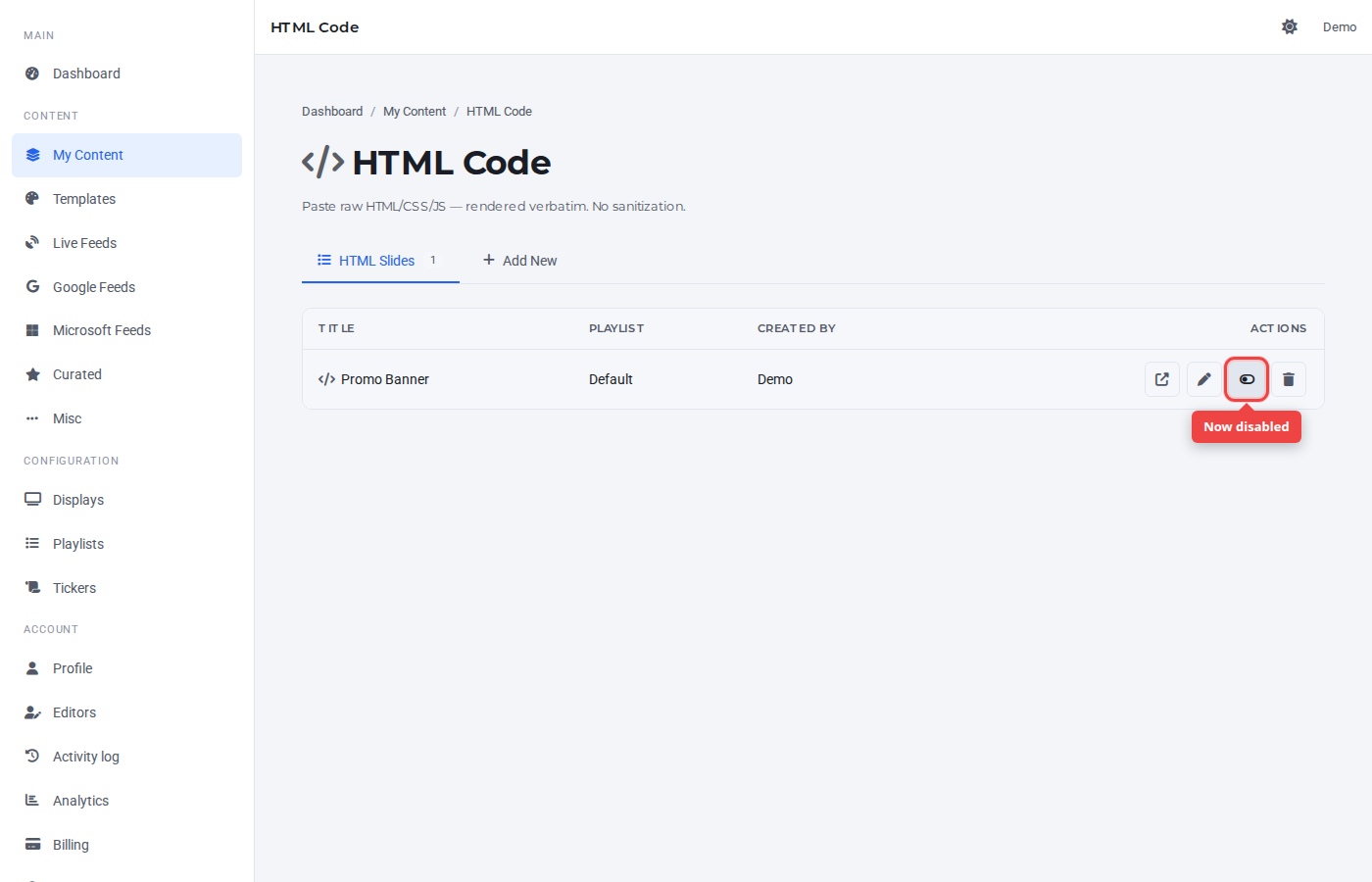
Re-enable
Click the toggle again to flip it back on.
Was this article helpful? If you need more help, open a support ticket.
Sign in to open a ticket