Knowledge Base / Live Feeds & Integrations
How to add a Google Slides presentation
Updated May 10, 2026
Connect a Google Slides source to your library. The presentation is added to your default playlist and starts playing on the next playback cycle.
Step 1 — Open Google Slides
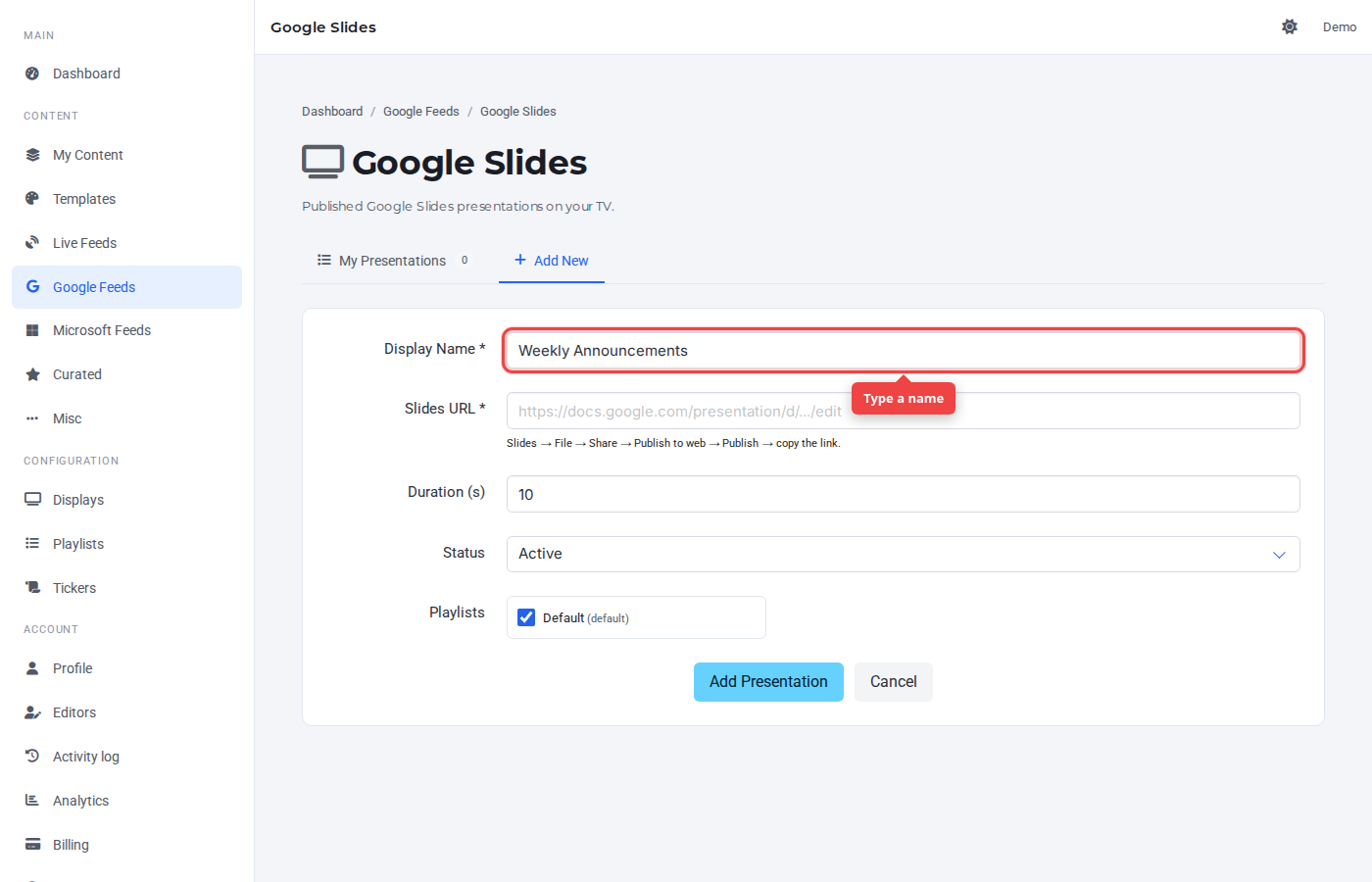
Navigate to Google Feeds → Google Slides. Click the Add New tab. Type a display name in the first field — this label appears in the Control Panel and on the row.
Step 2 — Paste the source
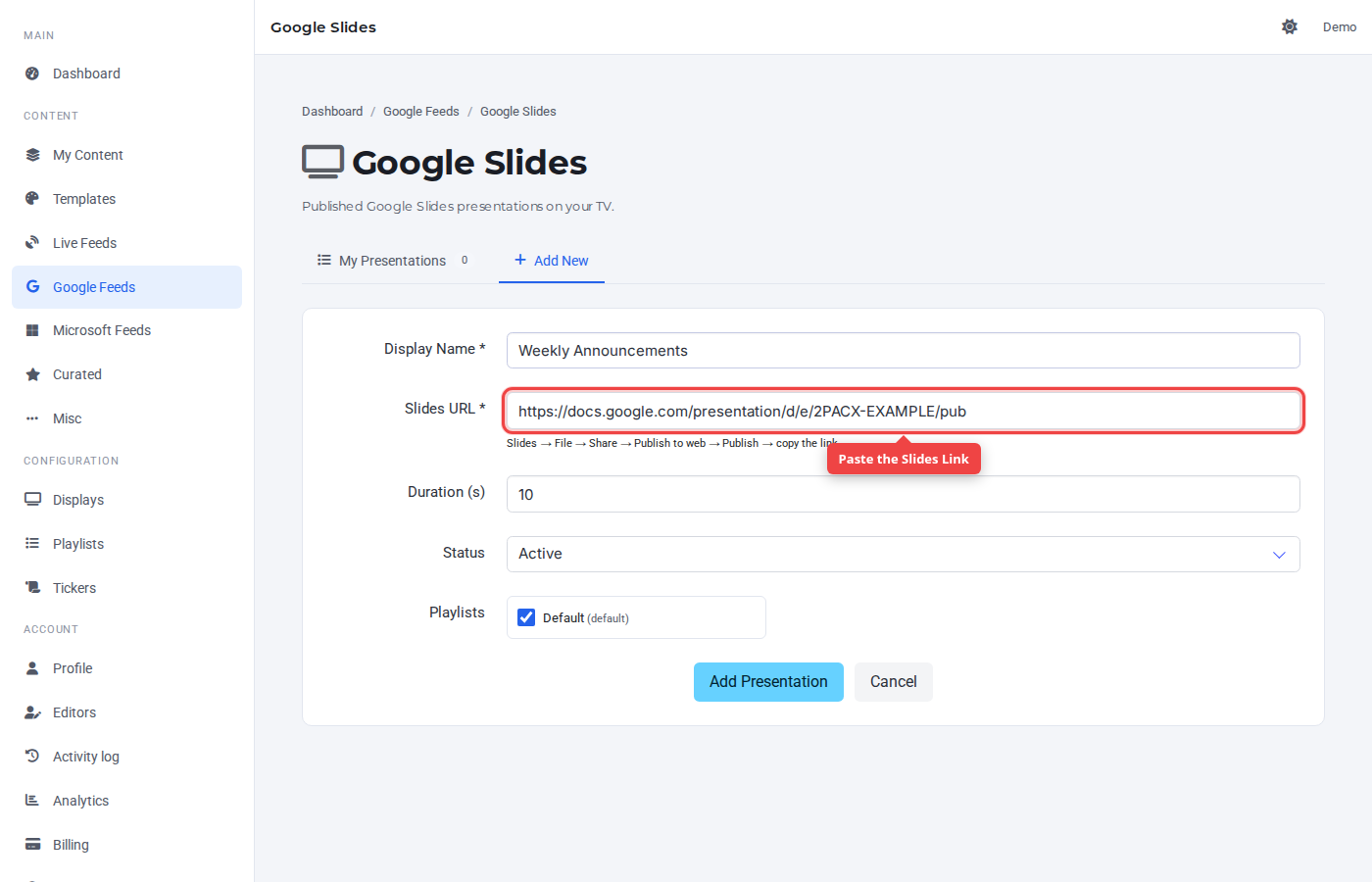
Paste the publish URL from File → Share → Publish to web.
Step 3 — Click Add Presentation
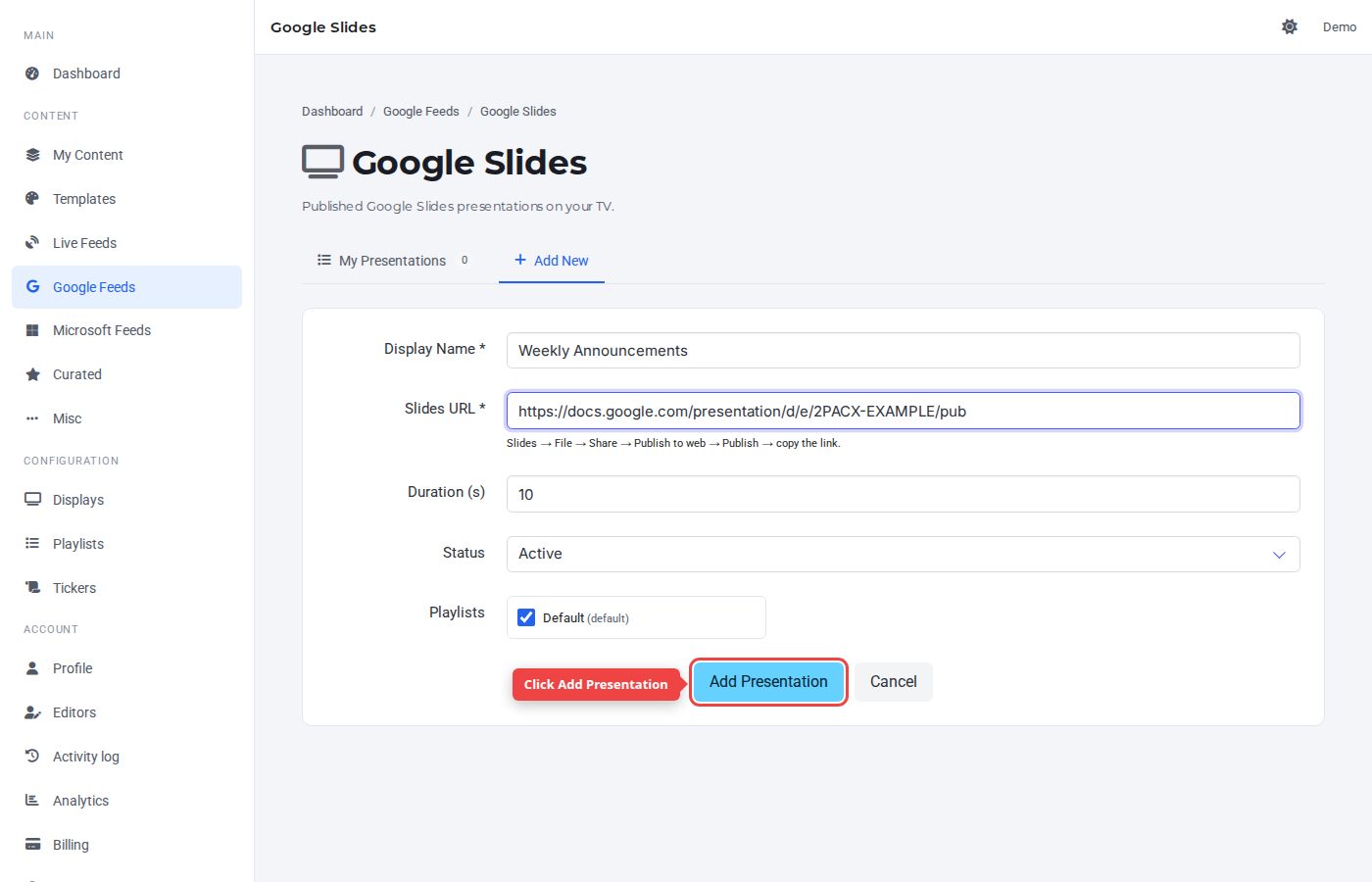
The default duration of 10 seconds works for most cases. Leave Status on Active so the presentation plays right away.
Step 4 — Confirm in My Presentations
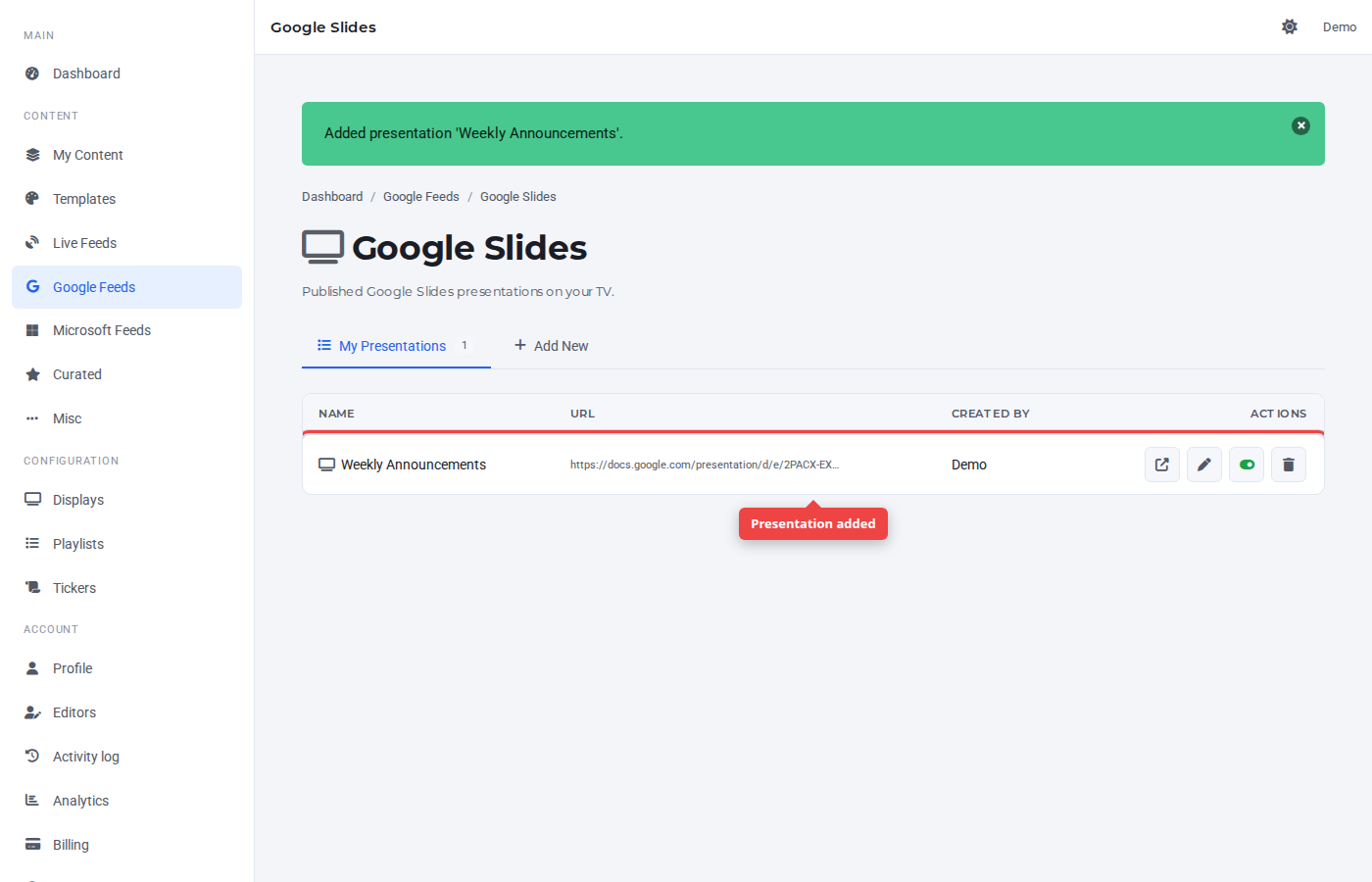
The new entry appears in the My Presentations tab. The right-most controls are preview, edit, active toggle, and delete.
Was this article helpful? If you need more help, open a support ticket.
Sign in to open a ticket