Permanently remove a Google Sheets sheet from your library. Deletion is not reversible — if you might want it back, use Disable instead.
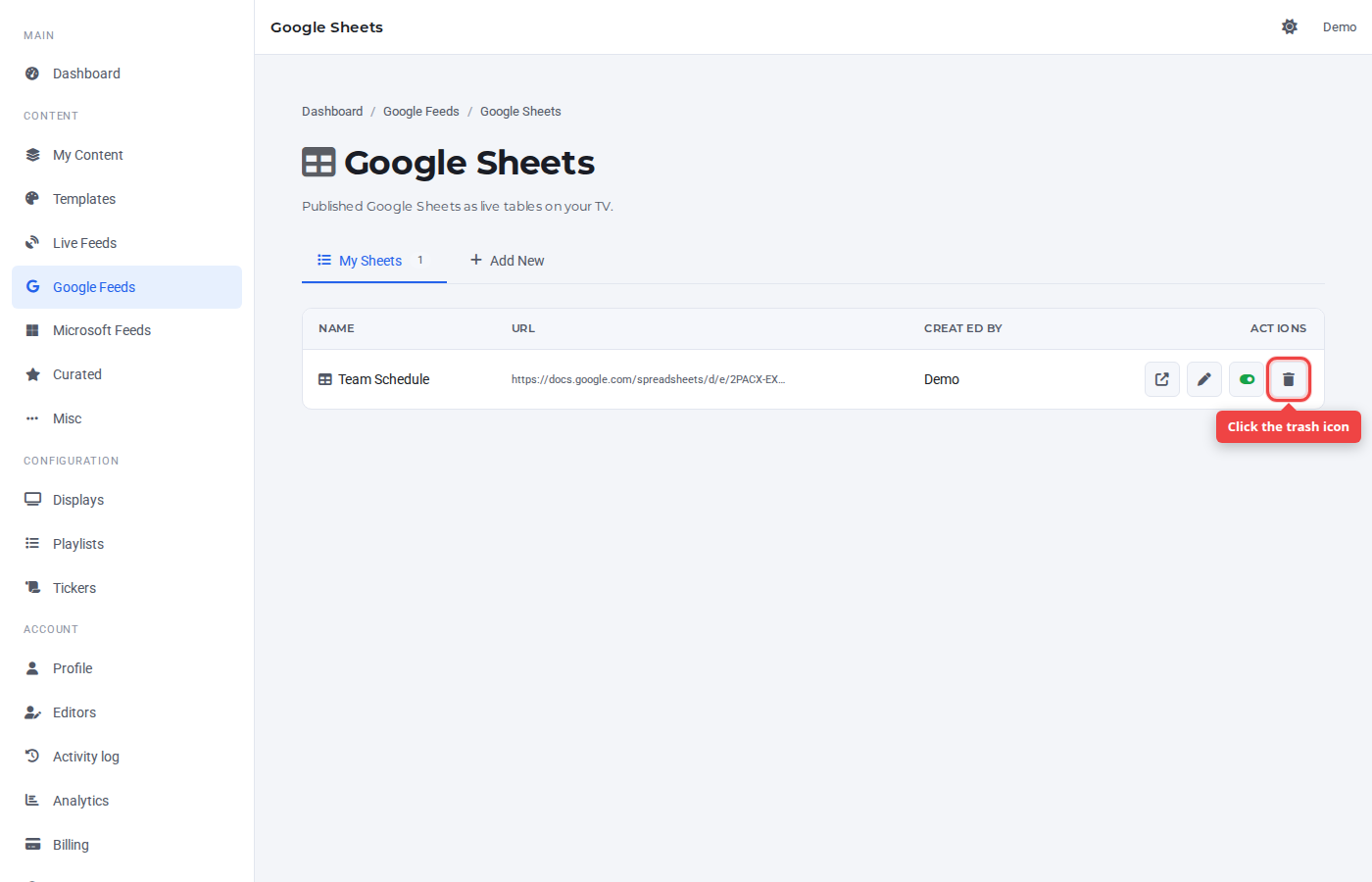
Step 1 — Open the My Sheets list
Find the row you want to remove. The right-most icon (red trash) is the delete button.
Step 2 — Confirm
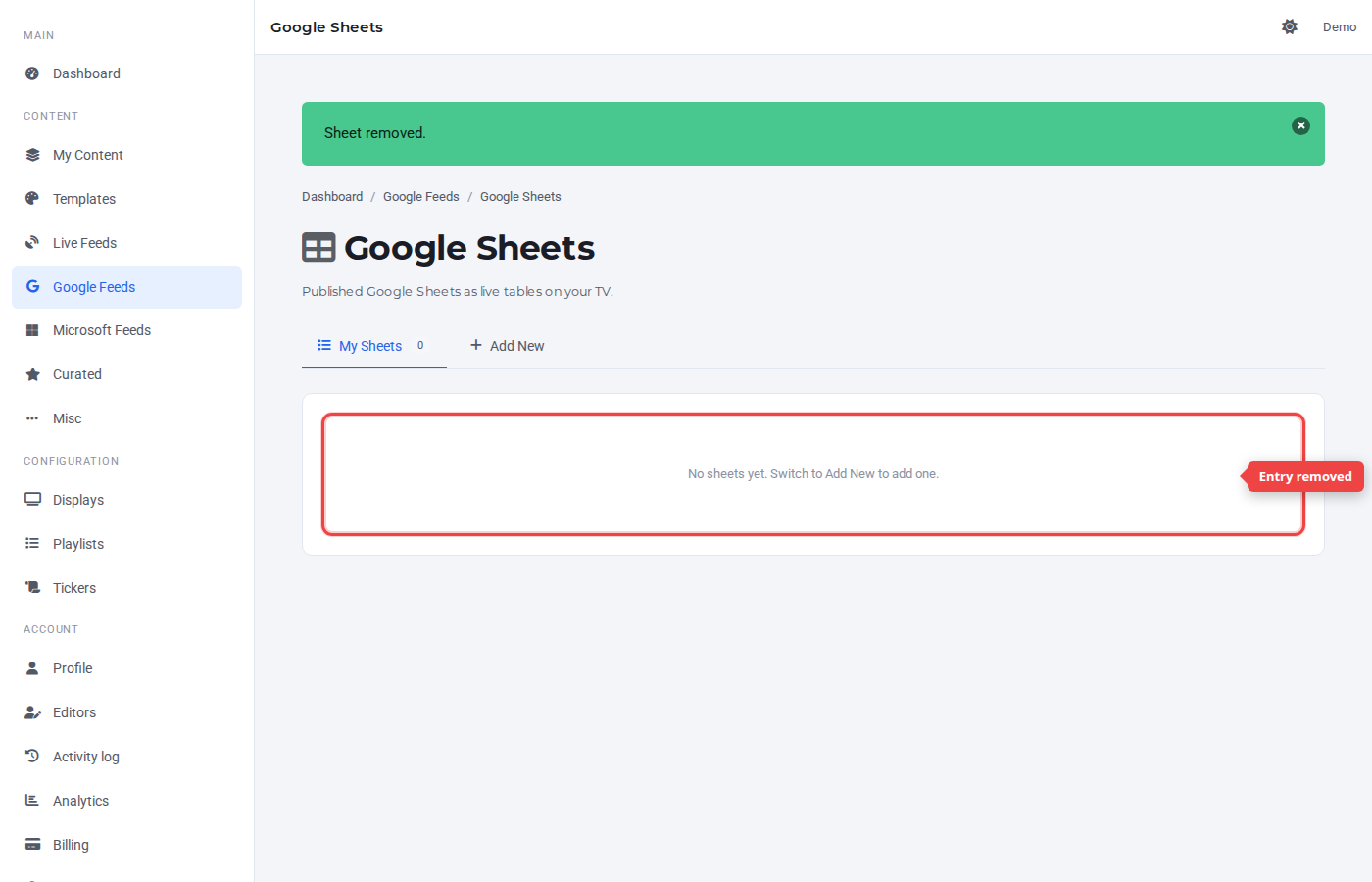
A confirmation prompt asks you to confirm. Click OK. The row disappears from the list.
Was this article helpful? If you need more help, open a support ticket.
Sign in to open a ticket