Knowledge Base / Live Feeds & Integrations
How to edit a Google Drive PDFs folder
Updated May 10, 2026
Open an existing Google Drive PDFs entry and change any field. Edits replace the saved values; the original is not retained.
Step 1 — Open the My Folders list
Navigate to Google Feeds → Google Drive PDFs → My Folders. The row's right-most icons are preview, edit, toggle, and delete.
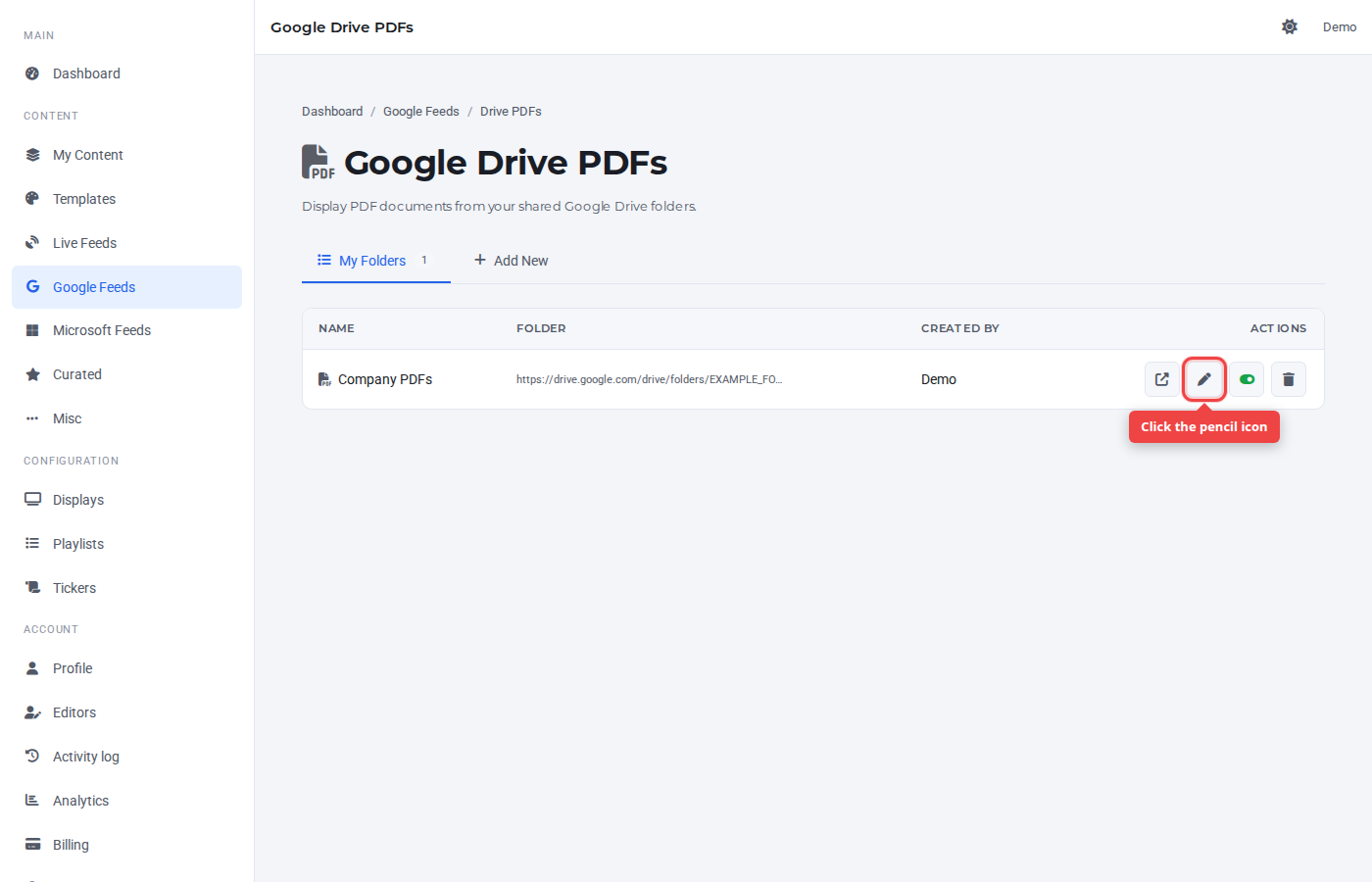
Step 2 — Click the pencil icon
The form opens with the row's saved values pre-filled. The view switches to the Add New tab — it doubles as the edit form.
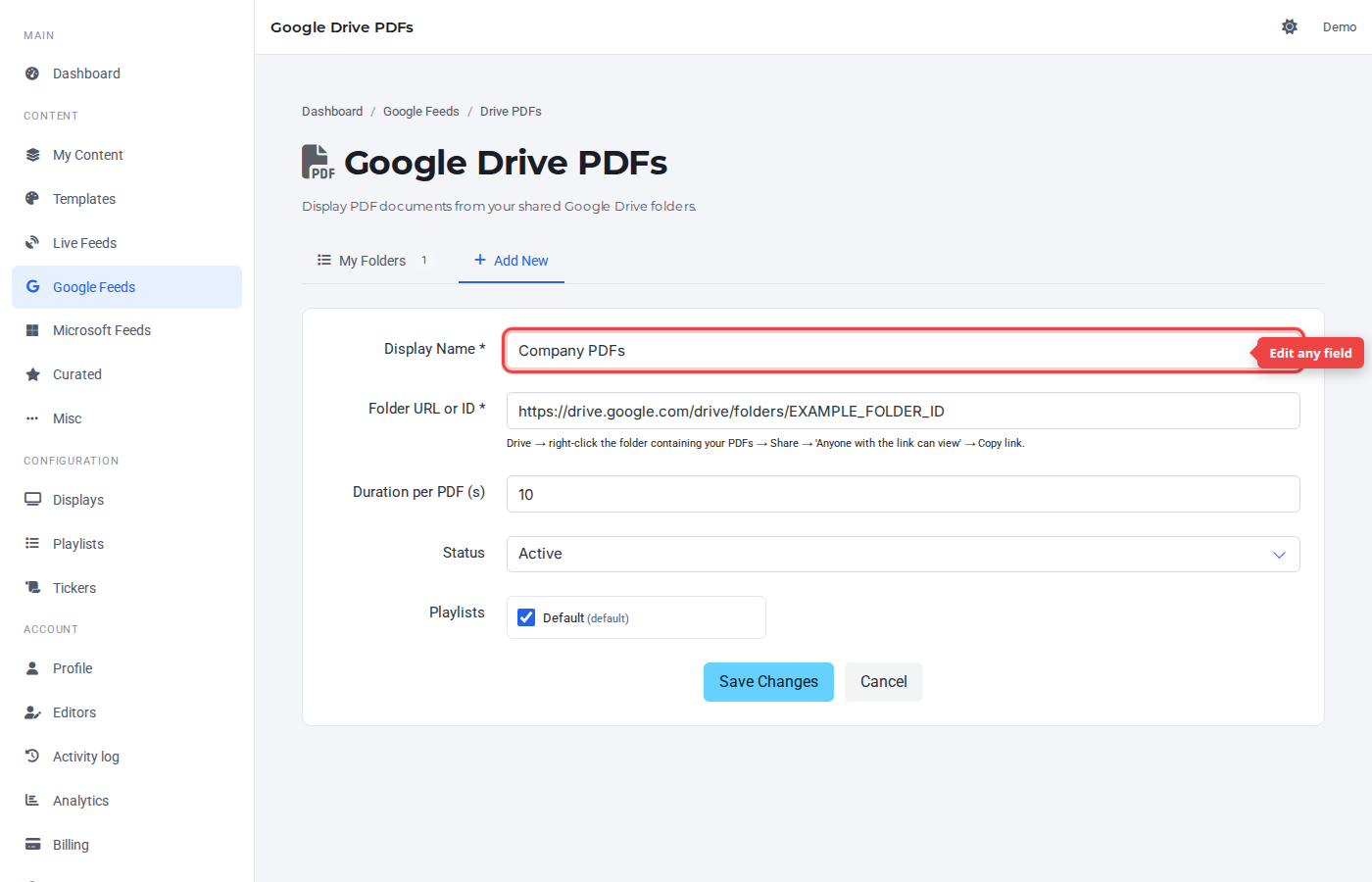
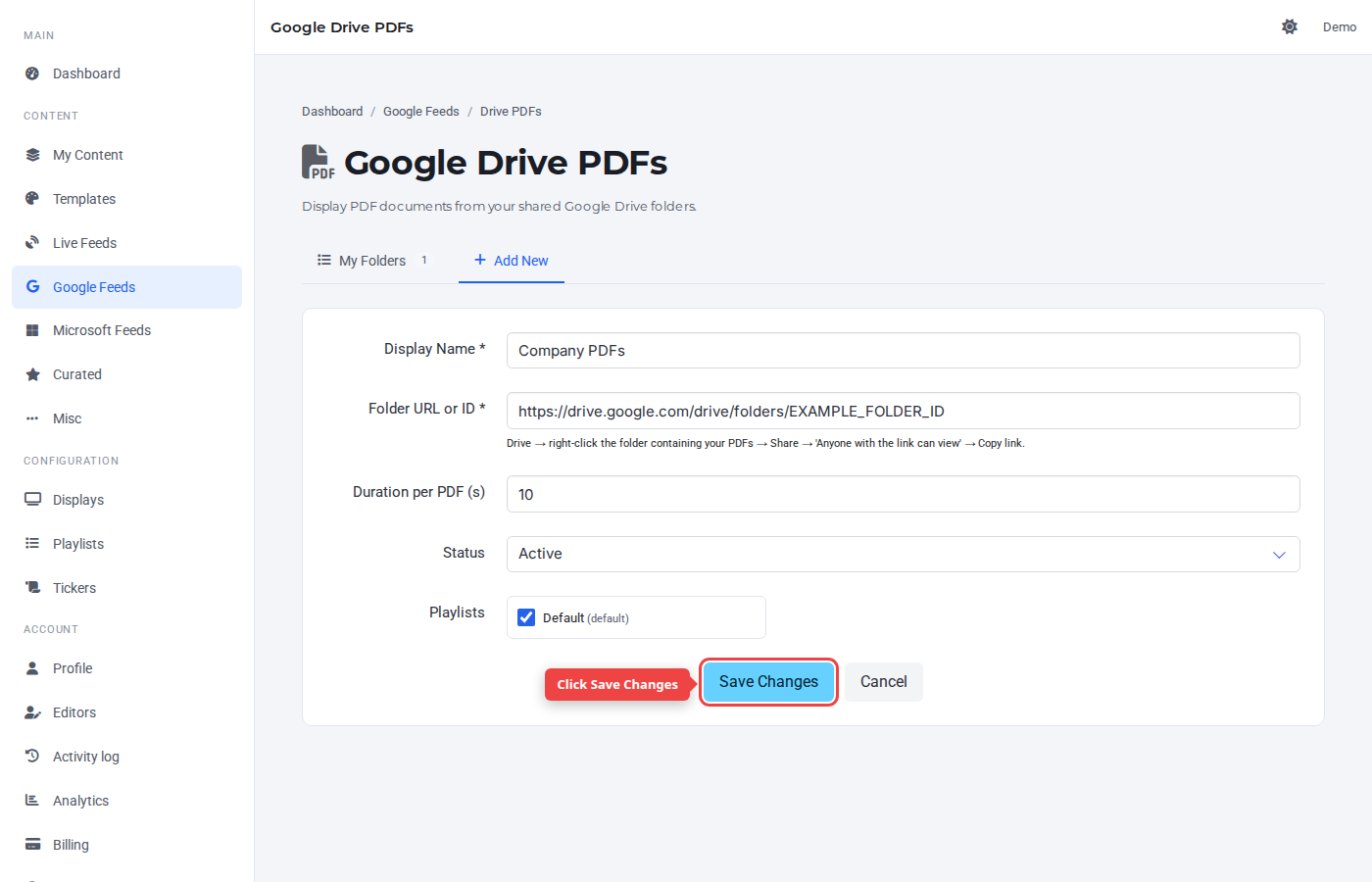
Step 3 — Change a value and click Save Changes
Change any field. The submit button label switches to Save Changes while editing.
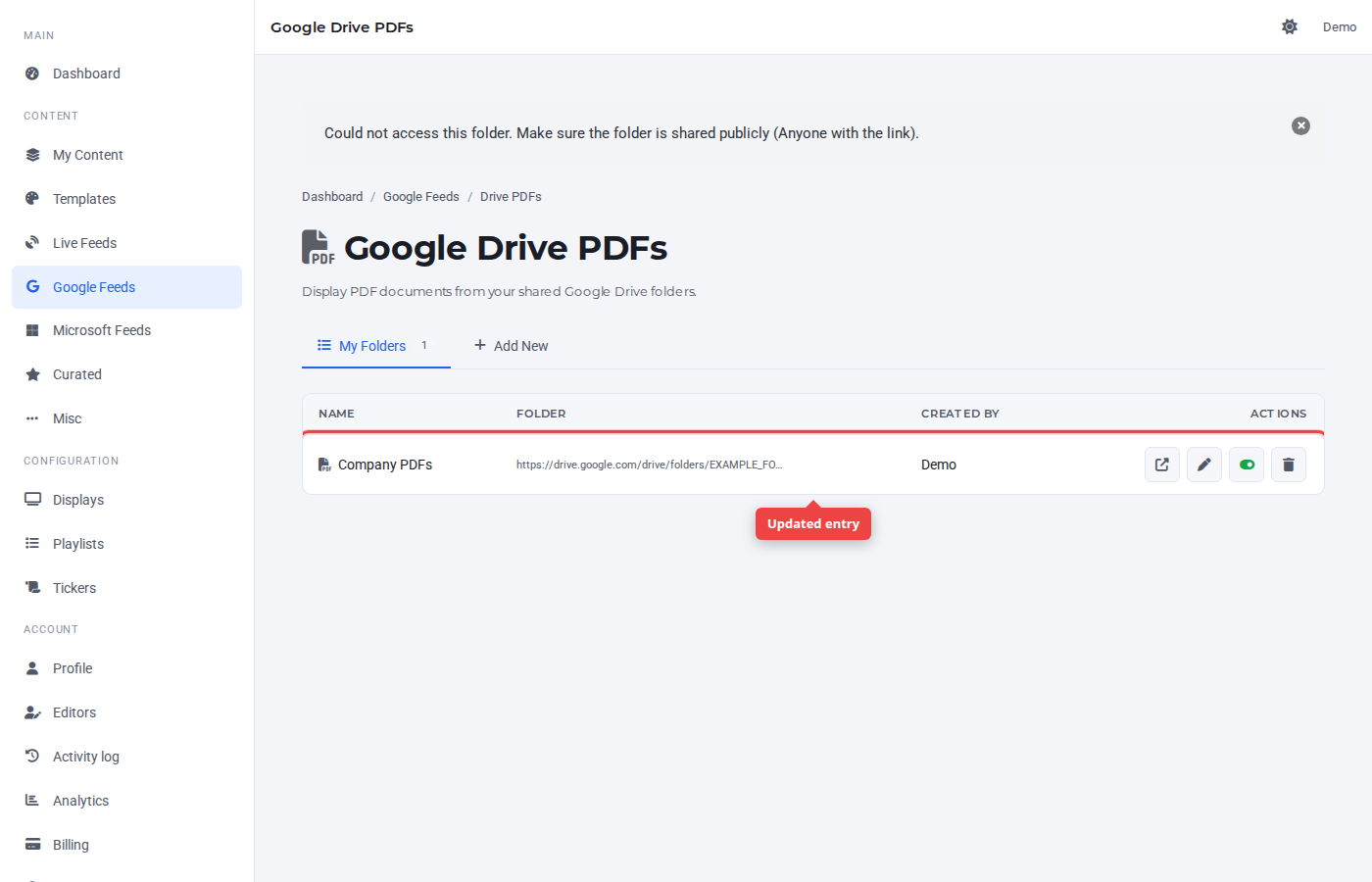
Step 4 — Confirm in the list
The row reflects the updated values immediately. The folder picks up the change on the next playback cycle on any TV running it.
Was this article helpful? If you need more help, open a support ticket.
Sign in to open a ticket